Prerequisites
Before you can configure and use n8n with Connect AI, you must first connect a data source to your Connect AI account. See Sources for more information. Generate a Personal Access Token (PAT) on the Settings page. Copy this down, as it acts as your password during authentication.Connect to Connect AI
Follow these steps to connect to Connect AI in n8n:1
Sign in to n8n.io or create a new account.
2
Create a workflow in n8n that uses the MCP client tool. The example below acts as a chatbot. OpenAI was used as the Chat Model, and Simple Memory was used as the Memory.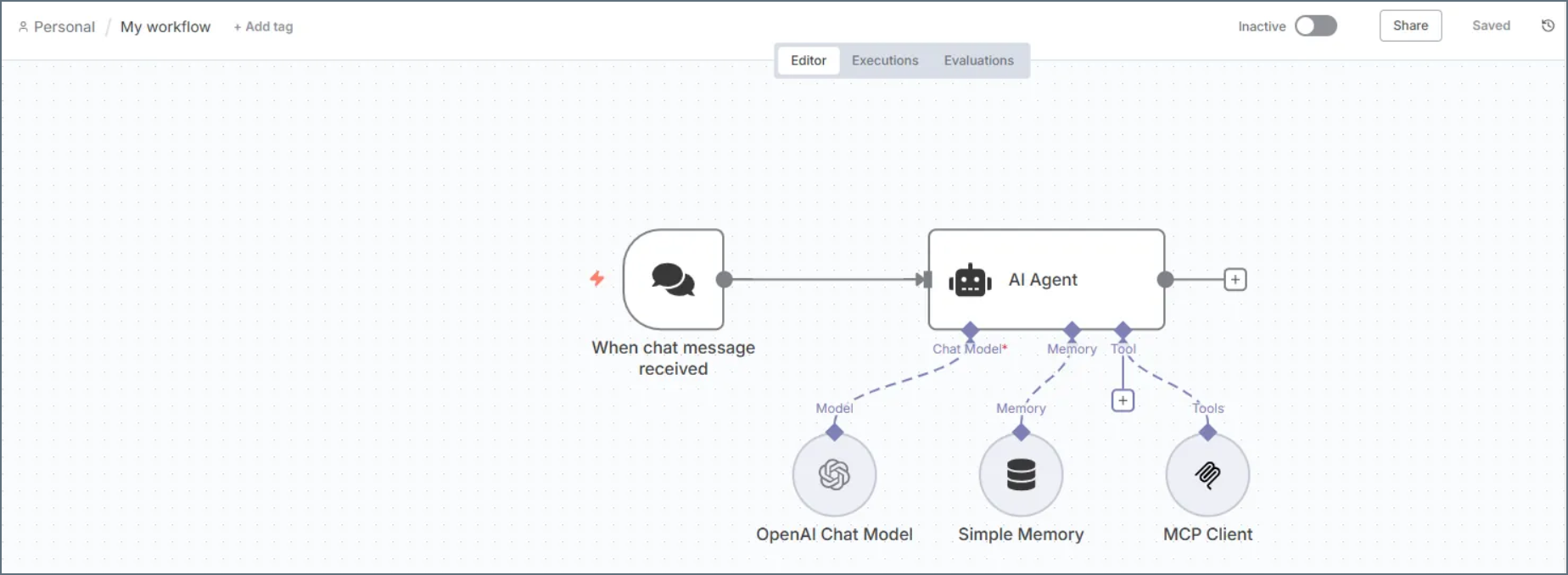
3
Configure the MCP Client node in the Workflow: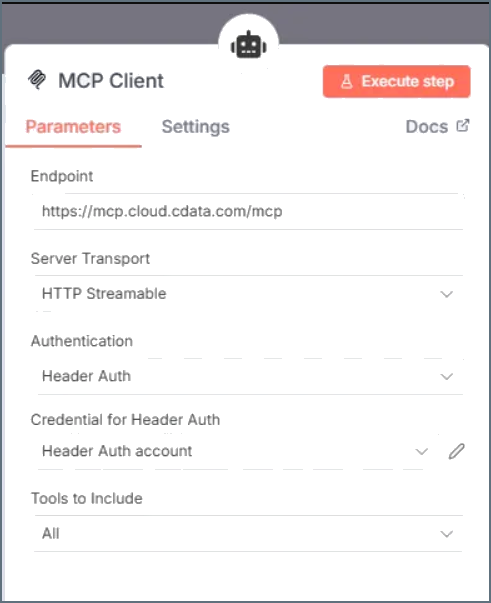
- Endpoint–enter https://mcp.cloud.cdata.com/mcp.
- Server Transport–select HTTP Streamable.
- Authentication–select Header Auth.
4
Edit the Header Auth account. In the Connection tab, set the following properties to use Basic Authentication: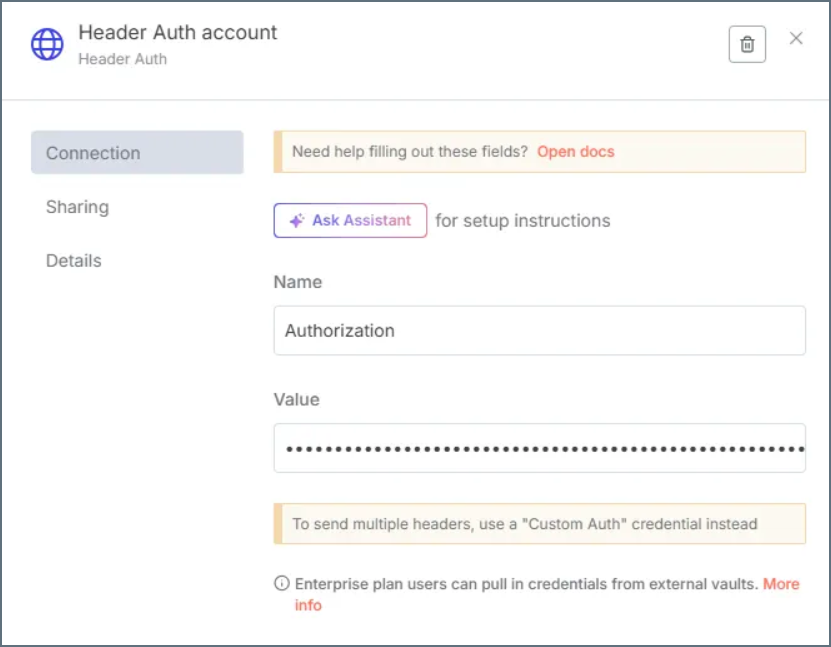
- Name–enter Authorization.
- Value–enter the value in the form Basic EMAIL:PAT, replacing EMAIL and PAT with your Connect AI email address and the PAT created in the prerequisites. For example: Basic email@cdata.com:Uu90pt5vEO….
5
(Optional) Give the AI Agent context. This establishes the AI Agent’s role and provides context for the conversation through the System Message parameter in the AI Agent node. By providing a system message that explicitly informs the agent about its role as an MCP Server expert and lists the available tools, you can enhance the agent’s understanding and response accuracy.
The following is an example System Message:
6
Now that you created the Workflow in n8n and connected the MCP Client, you can interact with your data. The MCP Client node allows you to send queries and receive responses from the data source in real time.
7
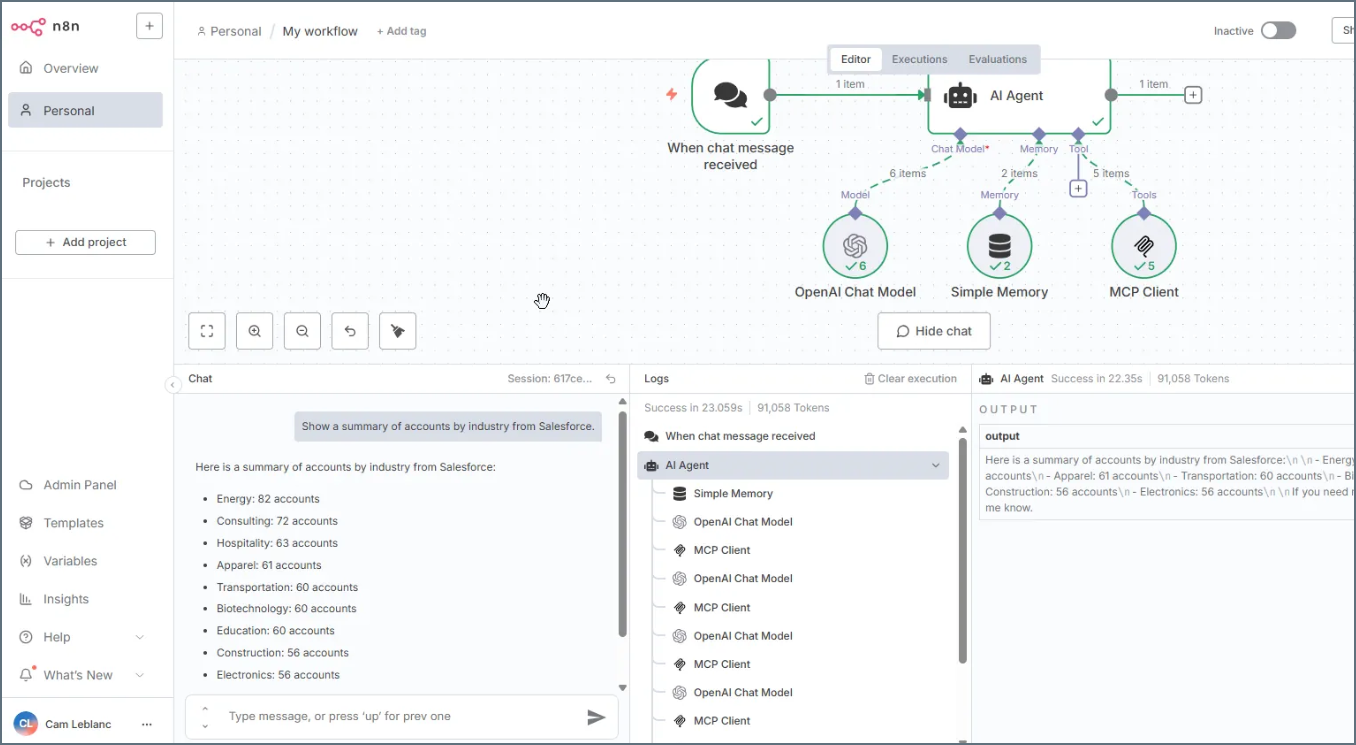
Open the Workflow in n8n and execute it to start interacting with your data. You can ask questions, retrieve data, and perform actions on your data using the MCP Client node: