

前提条件
接続する前にまず以下を実行します:- データソースをConnect AI アカウントに接続します。詳しくは、Sources を参照してください。
- Settings ページでPersonal Access Token (PAT) を生成します。PAT をコピーし、認証時にパスワードとして使用します。
Connect AI に接続する
Airbyte からConnect AI の仮想SQL Server API へのコネクションを確立するには以下の手順に従います。1
Log in to your Airbyte account.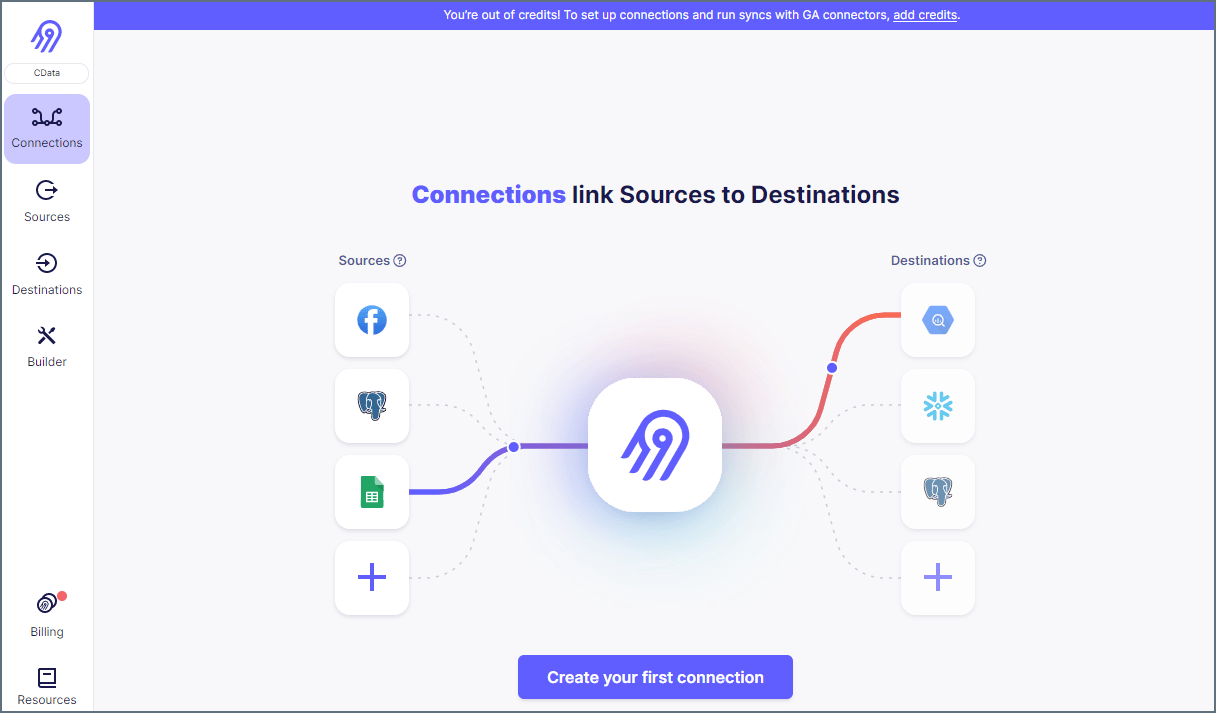
2
On the left pane, click Sources, then Add New Source.
3
Select MSSQL Server from Source Type to connect the TDS endpoint.
4
Enter your Source Name.
5
Enter your Host URL. In this case the host is tds.cdata.com.
6
Add the Port to connect to. In the example, the port is 14333.
7
Enter the Database to connect to. In the example, the Database is GoogleSheets1.
8
Enter the Username you use to connect to the source.
9
For the SSL Method, use Encrypted (trust server certificate), leave the Replication Method as standard, and the SSH Tunnel Method as No Tunnel.
10
Add any Schema you want to apply to the source.
11
Enter your Password for the source.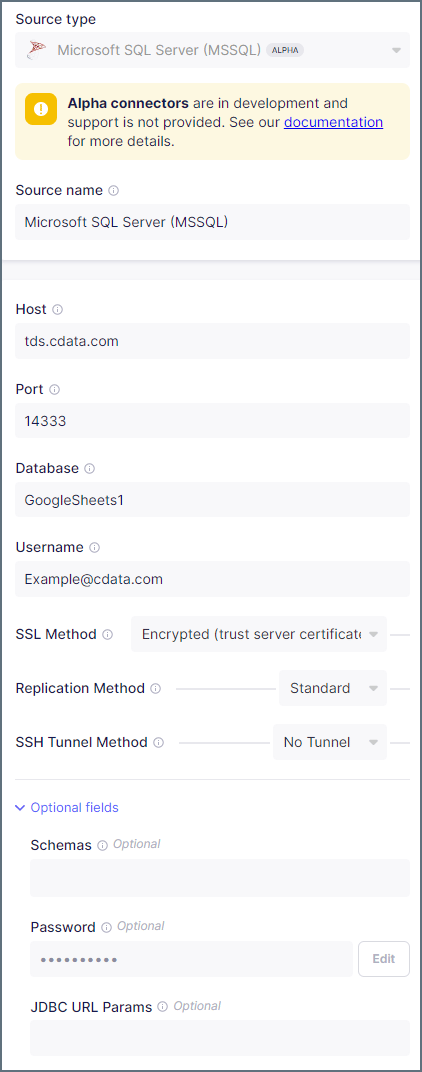
12
(Optional) Enter any needed JDBC URL Params.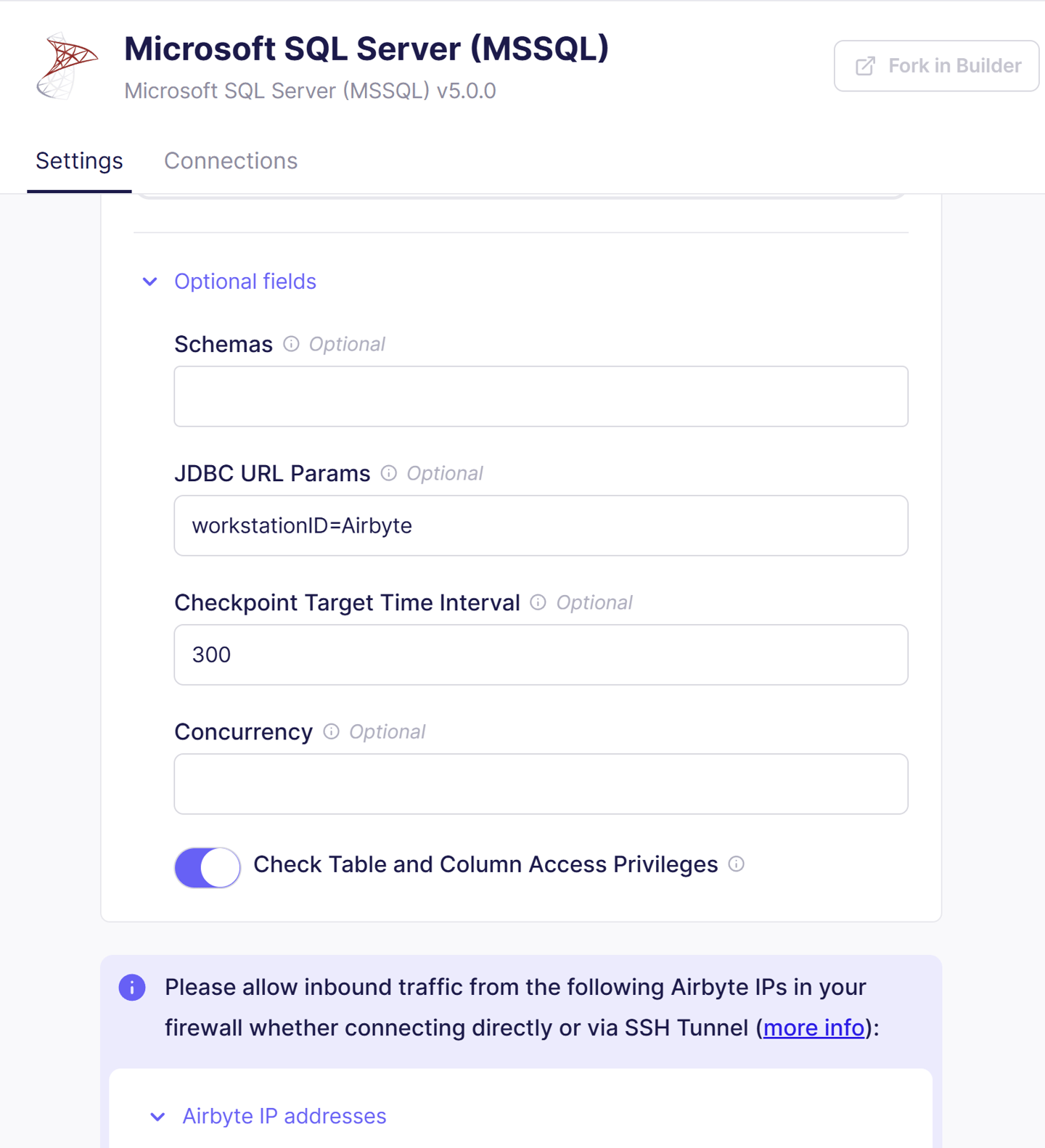
When connecting with Airbyte On-Premises, enter
workstationID=Airbyte in this field.
Do not include ; at the end of the property.13
Click Test and Save to create the data source. You can now connect your source with a destination, which you will need to create separately.
14
To connect your new source with your destination, click Connections and then Set Up Connection.
15
Select the source created above and your desired destination, then allow Airbyte to process. When it is done, your connection is ready for use.