

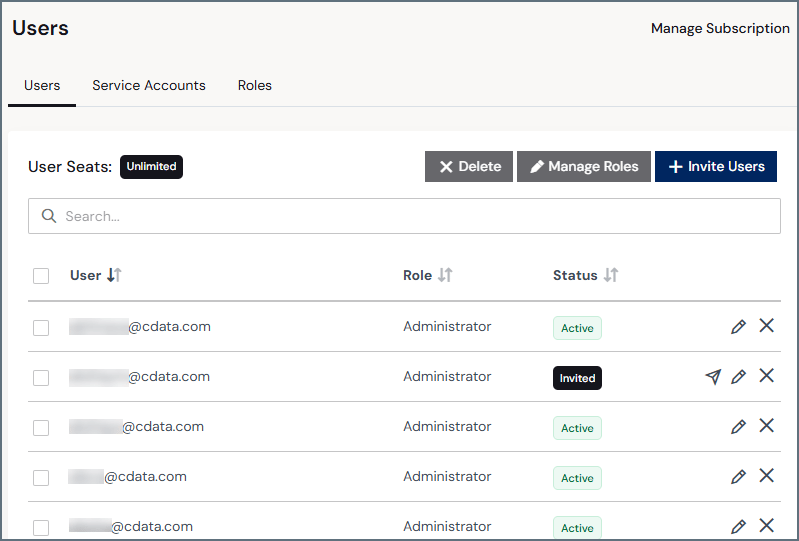
- The number of user seats that are available on your account.
- A row for every user on your account:
- User displays the email address that is associated with the user.
- Role indicates the user’s system role.
- Status shows the state of the user’s account (Active, Inactive, or Invited).
- Edit and delete icons for the user. If the user’s status is Invited, there is also an icon to resend the user’s invitation.
Invite Users
If you have Just-in-Time (JIT) provisioning enabled, you do not need to invite users manually.
1
In the Users tab, click Invite Users to open the user invitation dialog.
2
Enter the email address of the user that you want to invite. To send multiple invitations at the same time, add a space between each email address.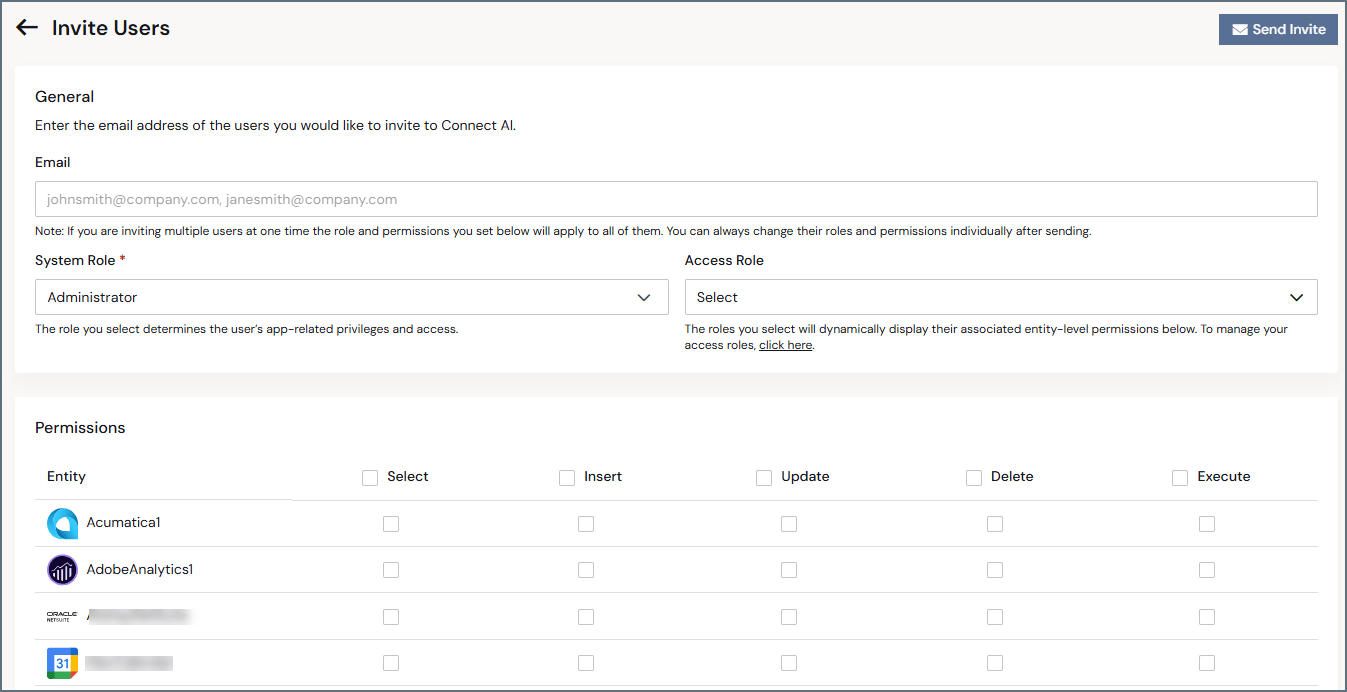
If you invite multiple users at the same time, they will have the same role(s). You can change their role(s) individually after sending the invitation.
3
Select the System Role for the new user(s).
4
(Optional) Select an Access Role for the new user(s).
5
(Query users only) Toggle on Support Access Privileges if you want the user(s) to be able to authorize support access to their account. Administrators can revoke support access at any time.
6
(Optional) Select Permissions for the new user(s). Select the allowed permissions for each entity (data connection or workspace) in the system. Administrators and Connection Administrators can edit permissions later.For more information about permissions, see Permissions and Access Control.
7
Click Send Invite. If a user is registered already to an email address that you enter, the dialog prompts you to enter a different email address.
Accept an Invitation
Follow these steps to set up access after receiving an invitation email:1
Click Accept Invite in the invitation email to open the password creation page.
2
Create a password that meets the provided criteria. After you create a password, the login page
appears.
3
Log in with your email address and your new password. After you log in, the sign-up page
appears.
4
Enter your first name and last name.
5
Enter the account name and the invite code from the invitation email. Then, click Complete
Sign Up.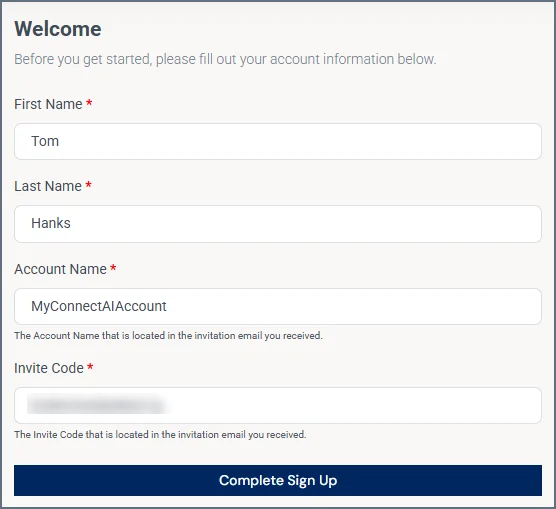
Connect AI supports Single Sign-On (SSO) through popular SSO providers. If SSO is enabled on your
account, the invitation flow uses your SSO provider instead of the manual password process.
Manage Invitations
If a user has a pending invitation that they have not accepted, their status displays as Invited. Click a pending user to view and manage their invitation. On this page, you can view the pending user’s email address, the expiration time for the invitation, and the invite code. You can also manage the user’s invitation, as follows:- To revoke the invitation and delete the user, click Delete User.
- To resend the invitation email to the entered email address, click Resend Invite.
Edit Users
Click a user in the list (or click the Edit button) to open the Edit User page.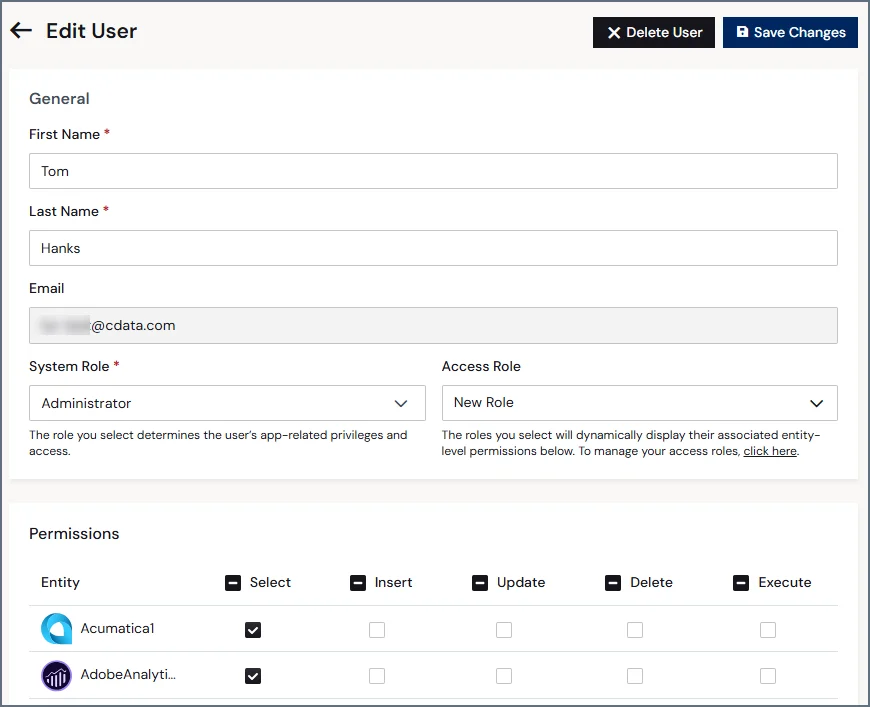
- Editable First Name and Last Name fields.
- A non-editable Email field.
- A drop-down menu to select the user’s System Role.
- A drop-down menu to select an additional Access Role (optional). These are any access roles that were created.
- A toggle for enabling or disabling Support Access Privileges (query users only). If enabled, the query user can grant account access to the CData support team.
- Check boxes for toggling the user’s permissions for each data source. (Note that CData Connect Spreadsheets users do not have a permissions section, because they have full permissions.)
Delete Users
To delete the user, click Delete User.If the user is the last remaining Administrator on your account, they cannot be deleted.