Prerequisites
Before you can configure and use Claude Code with Connect AI Embed, you must first generate an OAuth JWT bearer token. Copy this down, as it acts as your password during authentication.Connect Claude Code to the Connect AI MCP
1
Open PowerShell as an Administrator and run the following command:
2
Once the installation is done, try running the following command in your terminal to confirm the installation:You should see something like this:
3
Create a project named
Claude code and open it in Visual Studio Code.4
In the terminal of your project, run the following command. Note that Connect AI Embed customers should use an authorization header of This creates a JSON file with your MCP Server.
Bearer {Your_OAuth_JWT_Token}.5
Type:A welcome screen appears: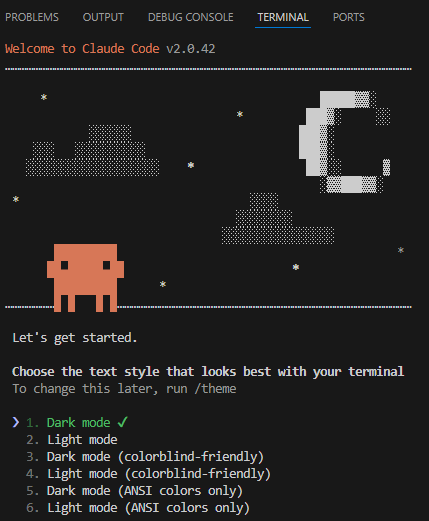
6
Choose a text style and login method. Claude Code opens the browser to log in to Claude.
7
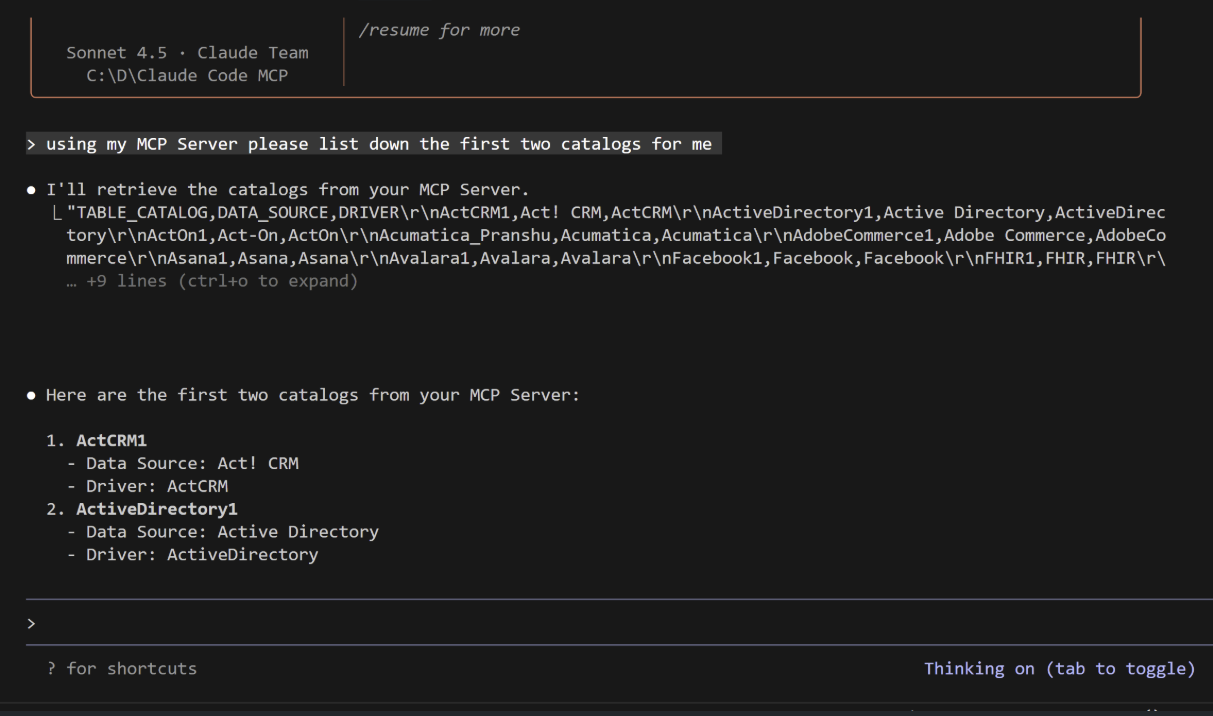
You can now interact with the MCP server: