

- Parent Account—CData sales creates the parent account. The parent account is responsible for managing the sub-accounts and can create, view, and edit sub-accounts through the Connect AI Embed API. The parent account can monitor and troubleshoot sub-accounts.
- Sub-Account—In the sub-account, each end user will have his/her own account. The end users can create, edit, and delete data sources. They can connect to data sources and query data.
Connect AI Embed Quickstart
The following is an overview of setting up Connect AI Embed. There are four main steps.Step 1: Create a Parent Account
CData sets up a parent account for you and sends you the account information, including the account name and account Id.
The administrator of the Connect AI Embed parent account creates a JSON Web Token (JWT), which consists of a private key and a corresponding public key. The private key must be stored according to the security requirements of the product integrated with Connect AI Embed.
The administrator provides the public key certificate in Privacy-Enhanced Mail (PEM) format to register the management account. They can register the public key by opening a support ticket with Connect AI.
Once registered, the administrator of the parent account can sign in to the account. Please accept the terms of service.
Step 2: Create a Sub-Account
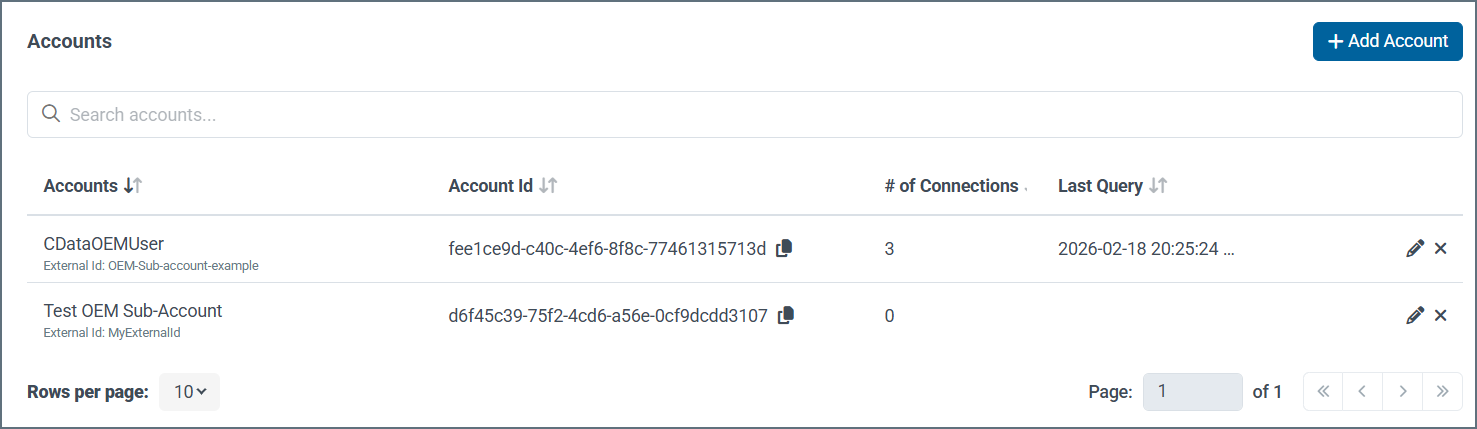
Once you created the parent account, you can create the sub-accounts in one of two ways:- In the Accounts page, click +Add account. Enter the Account Name and External ID of the sub-account, and click Confirm.
- Use Create Account in the Connect AI Embed API to create a sub-account. You must supply the JWT that you created in Create a Parent Account, as well as the External ID of the sub-account.
Step 3: Set Custom Overrides for Drivers (Optional)
Custom overrides allows the end users to log in with their own organization’s OAuth credentials, rather than CData credentials. To add connection overrides, follow these steps:Select whether the value should apply to new connections only or to all connections (new and existing).