> ## Documentation Index
> Fetch the complete documentation index at: https://docs.cloud.cdata.com/llms.txt
> Use this file to discover all available pages before exploring further.
# LLM Providers
> Register and manage LLM provider credentials for the LLM Gateway.
The ***LLM Providers*** page contains a list of available LLM providers, models, and the API keys the gateway uses to reach them. LLM Gateway supports the following external providers: Anthropic, Azure OpenAI, Cohere, Custom OpenAI-compatible providers, Google Gemini, and OpenAI.
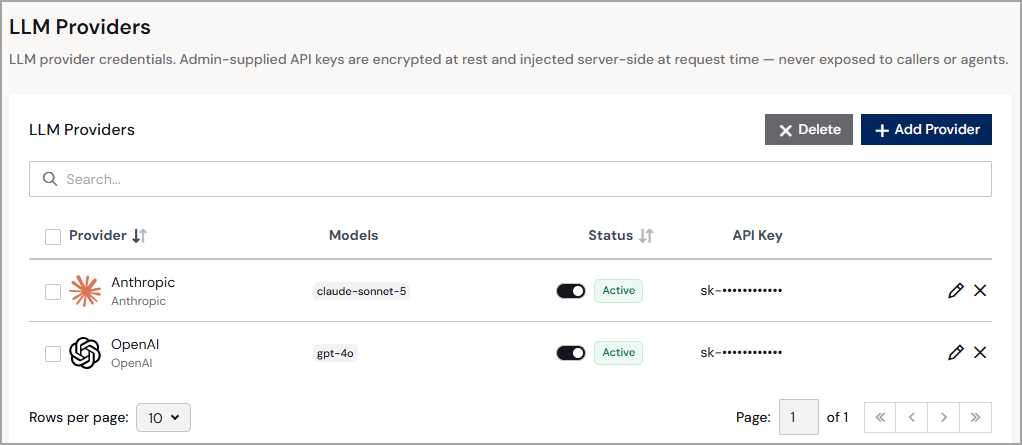 Each provider displays the following information:
* **Provider**—the user-friendly name and type of the LLM provider.
* **Models**—the LLM you are using (for example, *gpt-4o* or *claude-sonnet-5*).
* **Status**—the status of the LLM provider: **Active** or **Inactive**.
* **API Key**—a masked representation of the API key obtained from the LLM provider. The API key cannot be edited after the provider is registered. To update an API key, delete the provider and re-add it.
Each provider also contains edit and delete icons. On the edit page of the provider, you can edit the provider's **Name** and add or delete **Models**. Click **Save Changes** when finished. Click the delete icon to remove the provider.
You must be have a system role of Administrator to add, edit, or delete providers. Non-administrators can view this page but cannot make any changes.
## Add a Provider
For each provider, obtain your API key from that provider's developer console before registering.
To register a new LLM provider, do the following:
Click **+ Add Provider**. An **Add LLM Provider** dialog appears.
Enter the following information about the provider (Step 1):
* **Name**—enter a friendly name for the provider.
* **Provider**—select a supported provider type.
* **Override Base URL**—select this to use your own address (such as a company proxy) instead of the provider default. This option is not available for **Azure OpenAI** or **Custom** providers, which always require a Base URL.
* **Base URL**—enter the base endpoint for the provider, for example, *[https://proxy.example.com/v1](https://proxy.example.com/v1)*. This field is editable only when **Override Base URL** is selected or when the provider is **Azure OpenAI** or **Custom**. Otherwise, it displays the provider default. See [Base URL Requirements](#base-url-requirements).
* **API Key**—enter the provider's API key.
Add the LLM models to use for the provider (Step 2). Click **+ Add Model** and enter the model name. Repeat to add additional models.
When you are finished adding models, click **Add**. The LLM provider appears on the **LLM Providers** page with a status of **Active**.
## Base URL Requirements
Unless you select **Override Base URL**, Connect AI uses the default base URL for the provider:
| Provider | Default Base URL |
| - | - |
| OpenAI | `https://api.openai.com/v1` |
| Anthropic | `https://api.anthropic.com/v1` |
| Google Gemini | `https://generativelanguage.googleapis.com` |
| Cohere | `https://api.cohere.ai` |
If you override the base URL, or use an **Azure OpenAI** or **Custom** provider, follow these rules:
* OpenAI and Anthropic–include the version path, for example, *[https://proxy.example.com/v1](https://proxy.example.com/v1)*.
* Cohere–use the host only.
* Google Gemini–end the URL before `/v1beta`.
* For all providers, do not include a query string, fragment, or user name and password. The exception is Azure OpenAI, which uses `?api-version=`.
This documentation is built and hosted on [Mintlify](https://mintlify.com), a developer documentation platform.
Each provider displays the following information:
* **Provider**—the user-friendly name and type of the LLM provider.
* **Models**—the LLM you are using (for example, *gpt-4o* or *claude-sonnet-5*).
* **Status**—the status of the LLM provider: **Active** or **Inactive**.
* **API Key**—a masked representation of the API key obtained from the LLM provider. The API key cannot be edited after the provider is registered. To update an API key, delete the provider and re-add it.
Each provider also contains edit and delete icons. On the edit page of the provider, you can edit the provider's **Name** and add or delete **Models**. Click **Save Changes** when finished. Click the delete icon to remove the provider.
You must be have a system role of Administrator to add, edit, or delete providers. Non-administrators can view this page but cannot make any changes.
## Add a Provider
For each provider, obtain your API key from that provider's developer console before registering.
To register a new LLM provider, do the following:
Click **+ Add Provider**. An **Add LLM Provider** dialog appears.
Enter the following information about the provider (Step 1):
* **Name**—enter a friendly name for the provider.
* **Provider**—select a supported provider type.
* **Override Base URL**—select this to use your own address (such as a company proxy) instead of the provider default. This option is not available for **Azure OpenAI** or **Custom** providers, which always require a Base URL.
* **Base URL**—enter the base endpoint for the provider, for example, *[https://proxy.example.com/v1](https://proxy.example.com/v1)*. This field is editable only when **Override Base URL** is selected or when the provider is **Azure OpenAI** or **Custom**. Otherwise, it displays the provider default. See [Base URL Requirements](#base-url-requirements).
* **API Key**—enter the provider's API key.
Add the LLM models to use for the provider (Step 2). Click **+ Add Model** and enter the model name. Repeat to add additional models.
When you are finished adding models, click **Add**. The LLM provider appears on the **LLM Providers** page with a status of **Active**.
## Base URL Requirements
Unless you select **Override Base URL**, Connect AI uses the default base URL for the provider:
| Provider | Default Base URL |
| - | - |
| OpenAI | `https://api.openai.com/v1` |
| Anthropic | `https://api.anthropic.com/v1` |
| Google Gemini | `https://generativelanguage.googleapis.com` |
| Cohere | `https://api.cohere.ai` |
If you override the base URL, or use an **Azure OpenAI** or **Custom** provider, follow these rules:
* OpenAI and Anthropic–include the version path, for example, *[https://proxy.example.com/v1](https://proxy.example.com/v1)*.
* Cohere–use the host only.
* Google Gemini–end the URL before `/v1beta`.
* For all providers, do not include a query string, fragment, or user name and password. The exception is Azure OpenAI, which uses `?api-version=`.
This documentation is built and hosted on [Mintlify](https://mintlify.com), a developer documentation platform.