> ## Documentation Index
> Fetch the complete documentation index at: https://docs.cloud.cdata.com/llms.txt
> Use this file to discover all available pages before exploring further.
# Zoho Analytics
> This page outlines the steps to connect Zoho Analytics to the Connect AI Virtual SQL Server API.
## Prerequisites
Before you connect, you must first do the following:
* Connect a data source to your Connect AI account. See [Sources](/en/Sources) for more information.
* Generate a Personal Access Token (PAT) on the [Settings](/en/Settings#personal-access-tokens) page. Copy this down, as it acts as your password during authentication.
## Connect to Connect AI
To establish a connection from Zoho Analytics to the Connect AI Virtual SQL Server API, follow these steps.
Log in to Zoho Analytics.
Create a new connection and select **Other Cloud Services** to open the connection dialog.
Enter the following information:
* **Database Type**—select *MS SQL Server*.
* **Endpoint**—enter *tds.cdata.com*
* **SQL Server Instance Name**—leave this blank.
* **Port**—enter *14333*
* **Username**—enter your Connect AI username. This is displayed in the top-right corner of the Connect AI interface. For example, *[test@cdata.com](mailto:test@cdata.com)*.
* **Password**—enter the PAT you generated on the [Settings](/en/Settings#personal-access-tokens) page.
* **Database Name**—enter the Connection Name of the Connect AI data source you want to connect to (for example, *Salesforce1*).
* **Connection Type**—select *Data Import*.
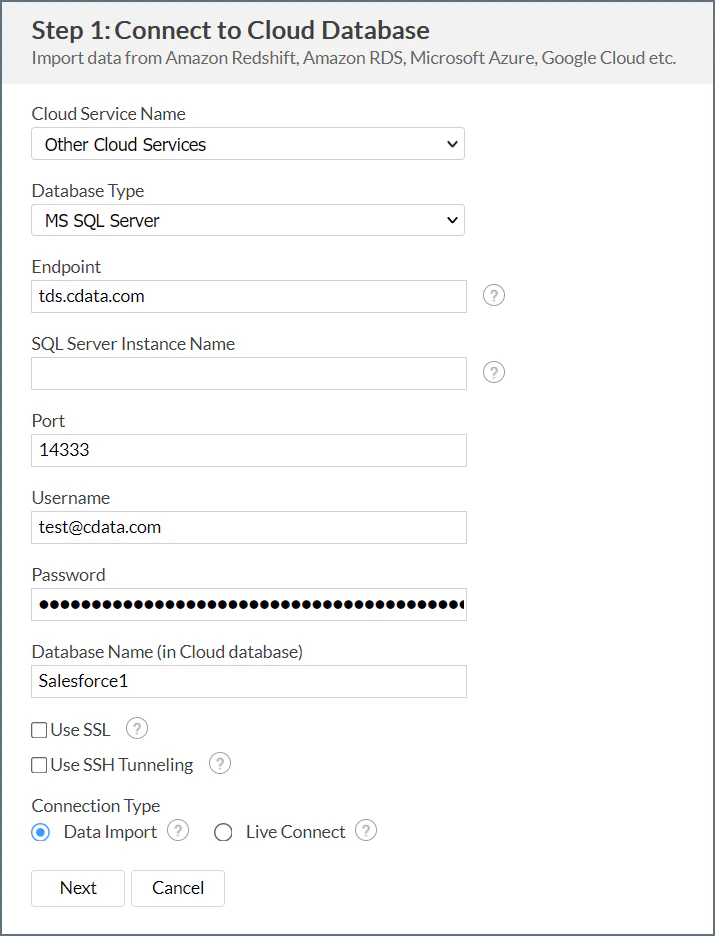 Click **Next** to test and create your connection.
Continue through each step of the connection dialog to import your data as needed.
When the data import process finishes, your data will be available to use in Zoho Analytics.
If your table contains underscores, such as `account_move`, you need to first create a derived view for that table without an underscore in the name. Then load the derived view instead. Zoho Analytics cannot load tables whose names include underscores.
Click **Next** to test and create your connection.
Continue through each step of the connection dialog to import your data as needed.
When the data import process finishes, your data will be available to use in Zoho Analytics.
If your table contains underscores, such as `account_move`, you need to first create a derived view for that table without an underscore in the name. Then load the derived view instead. Zoho Analytics cannot load tables whose names include underscores.