> ## Documentation Index
> Fetch the complete documentation index at: https://docs.cloud.cdata.com/llms.txt
> Use this file to discover all available pages before exploring further.
# SAP Analytics Cloud
> This page outlines the steps to connect SAP Analytics Cloud to Connect AI using the [OData](/en/API/OData-Dashboard) protocol. This requires the use of workspaces. See the [Workspaces](/en/Workspaces) documentation for more information.
## Prerequisites
Before you connect, you must first do the following:
* Connect a data source to your Connect AI account. See [Sources](/en/Sources) for more information.
* Create a [Workspace](/en/Workspaces). Later, you will use the **OData Service URL** on that page (*[https://cloud.cdata.com/api/odata/\{workspace\\\_name}](https://cloud.cdata.com/api/odata/\{workspace\\_name})*) with the relevant workspace name to establish the connection.
* Generate a Personal Access Token (PAT) on the [Settings](/en/Settings#personal-access-tokens) page. Copy this down, as it acts as your password during authentication.
## Connect to Connect AI
To establish a connection from SAP Analytics Cloud to Connect AI using the OData protocol, follow these steps.
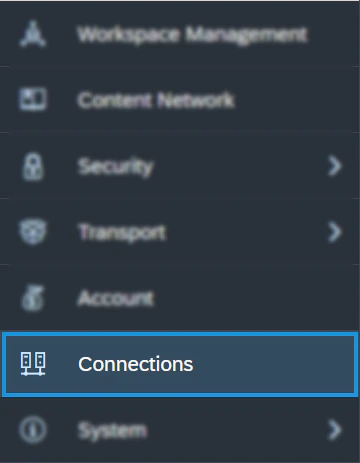
From the SAP Analytics Cloud dashboard, open the navigation menu and click **Connections**.
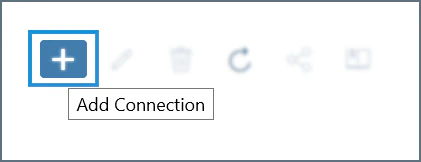
 On the Connection page, click **Add Connection**.
 In the **Select a data source** dialog, type *odata* into the search bar and select **OData Services**. You can also find it listed under the **Acquire Data** category without searching.
Configure the connection:
* Enter a **Connection Name** and, optionally, a **Description**.
* **Data Service URL**—enter *[https://cloud.cdata.com/api/odata/\{workspace\\\_name}](https://cloud.cdata.com/api/odata/\{workspace\\_name})*
* **Authentication Type**—select **Basic Authentication**.
* **User Name**—enter your Connect AI username. This is displayed in the top-right corner of the Connect AI interface. For example, *[test@cdata.com](mailto:test@cdata.com)*.
* **Password**—enter the PAT you generated on the [Settings](/en/Settings#personal-access-tokens) page.
In the **Select a data source** dialog, type *odata* into the search bar and select **OData Services**. You can also find it listed under the **Acquire Data** category without searching.
Configure the connection:
* Enter a **Connection Name** and, optionally, a **Description**.
* **Data Service URL**—enter *[https://cloud.cdata.com/api/odata/\{workspace\\\_name}](https://cloud.cdata.com/api/odata/\{workspace\\_name})*
* **Authentication Type**—select **Basic Authentication**.
* **User Name**—enter your Connect AI username. This is displayed in the top-right corner of the Connect AI interface. For example, *[test@cdata.com](mailto:test@cdata.com)*.
* **Password**—enter the PAT you generated on the [Settings](/en/Settings#personal-access-tokens) page.
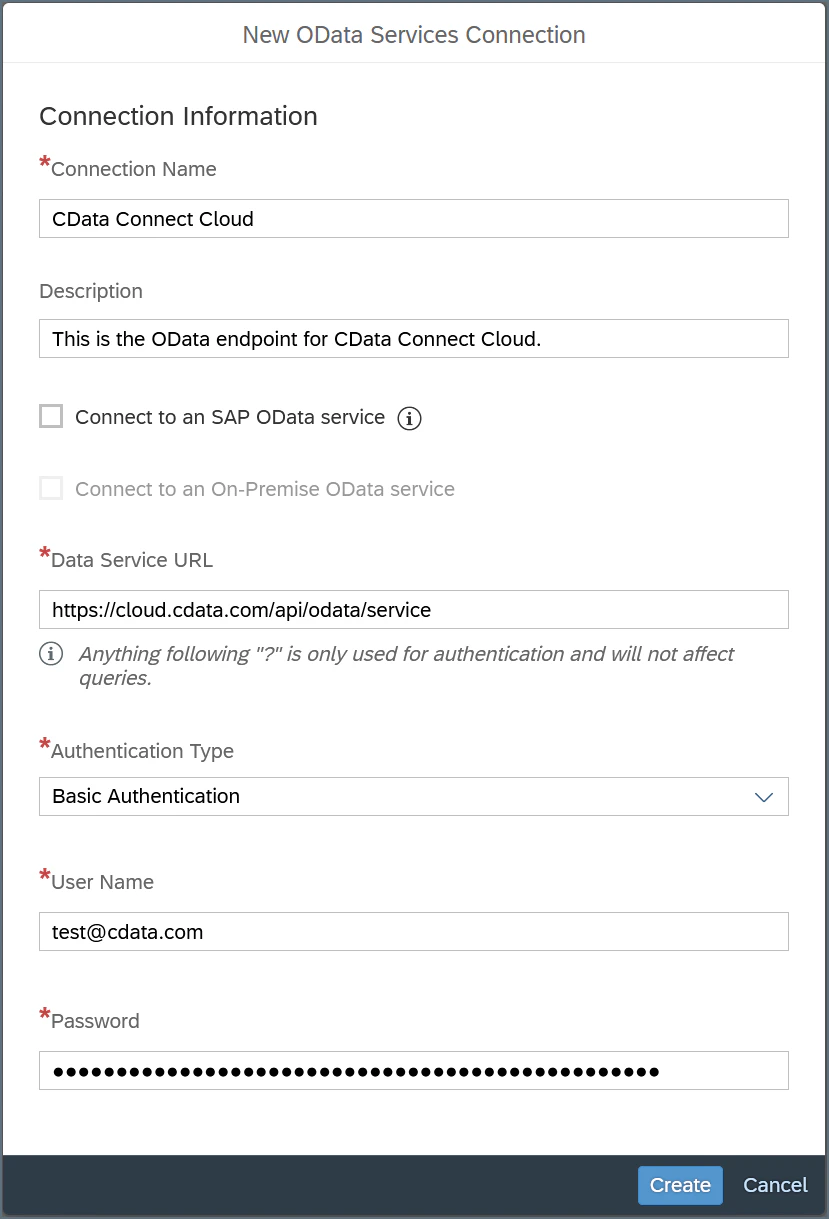 Click **Create** to save the connection.
## Query Your OData API
After establishing the connection to your Connect AI OData API, you can access it as a data source in SAP Analytics Cloud. Follow these steps to access it:
In SAP Analytics Cloud, open the navigation menu and click **Datasets** or **Modeler**.
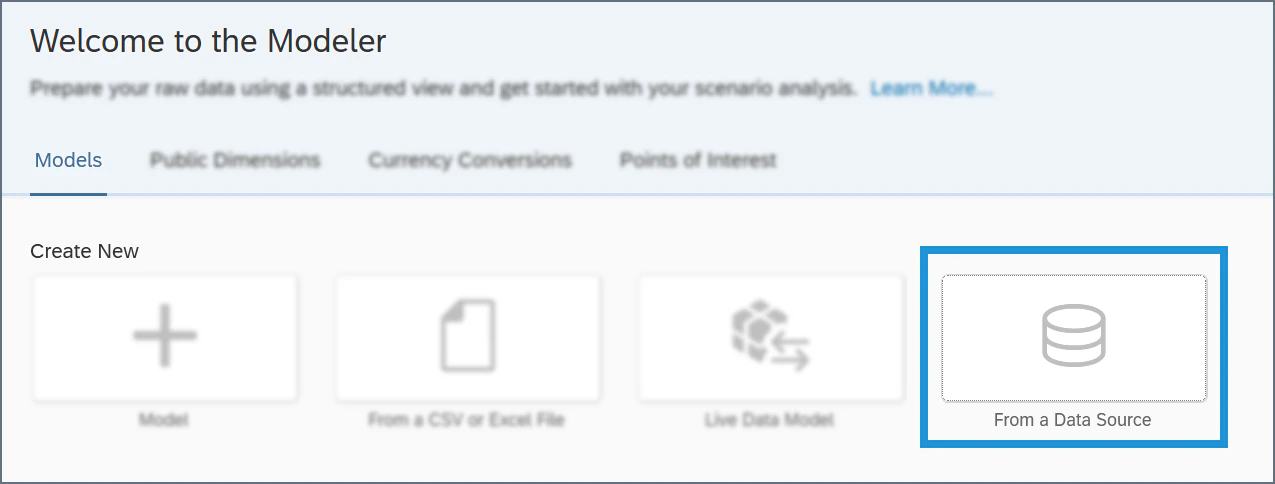
In the **Create New** section, click **From a Data Source**.
Click **Create** to save the connection.
## Query Your OData API
After establishing the connection to your Connect AI OData API, you can access it as a data source in SAP Analytics Cloud. Follow these steps to access it:
In SAP Analytics Cloud, open the navigation menu and click **Datasets** or **Modeler**.
In the **Create New** section, click **From a Data Source**.
 In the **Select a data source** dialog, select **OData Services**.
In the **Connection** drop-down menu, select the connection you created. If you are using the Modeler tab, select the **Create a new query** radio button.
In the **Select a data source** dialog, select **OData Services**.
In the **Connection** drop-down menu, select the connection you created. If you are using the Modeler tab, select the **Create a new query** radio button.
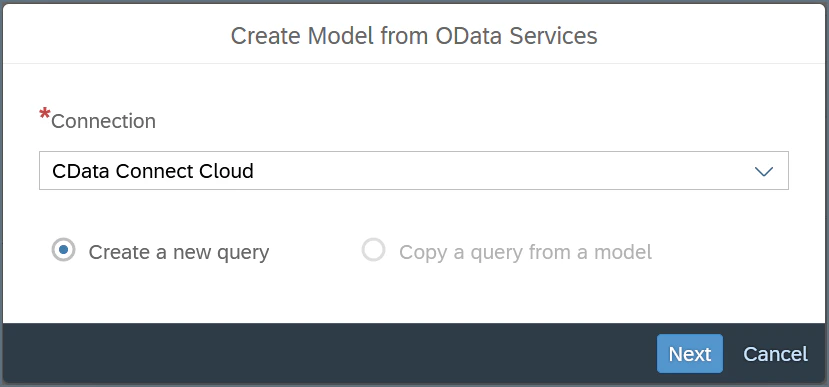 Click **Next** and build your query according to your needs.
For information about refreshing the data from your OData API, please see [this SAP Analytics Cloud help article](https://help.sap.com/viewer/00f68c2e08b941f081002fd3691d86a7/release/en-US/6aa6a99d4eb5467896c4fd47bc9c7642.html).
Click **Next** and build your query according to your needs.
For information about refreshing the data from your OData API, please see [this SAP Analytics Cloud help article](https://help.sap.com/viewer/00f68c2e08b941f081002fd3691d86a7/release/en-US/6aa6a99d4eb5467896c4fd47bc9c7642.html).