> ## Documentation Index
> Fetch the complete documentation index at: https://docs.cloud.cdata.com/llms.txt
> Use this file to discover all available pages before exploring further.
# Retool
> You can connect Retool to Connect AI via the OpenAPI specification or via the Virtual SQL Server API. Follow the prerequisites and steps for the method you want to use.
## Prerequisites for Connecting via OpenAPI
Before you connect via OpenAPI, you must first do the following:
* In Connect AI:
* Connect a data source to your Connect AI account. See [Sources](/en/Sources) for more information.
* [Add a workspace](/en/Workspaces#add-a-workspace) to Workspaces.
* [Add assets](/en/Workspaces#workspace-assets) to your workspace.
* Generate a Personal Access Token (PAT) on the [Settings](/en/Settings#personal-access-tokens) page. Copy this down, as it acts as your password during authentication.
* In Retool:
* Go to **Settings** > **API** and click **Create new** to generate an access token. See the [Retool documentation](https://docs.retool.com/org-users/guides/retool-api/authentication) for more information.
## Connect to Connect AI via OpenAPI
To establish a connection from Retool to Connect AI via OpenAPI, follow these steps.
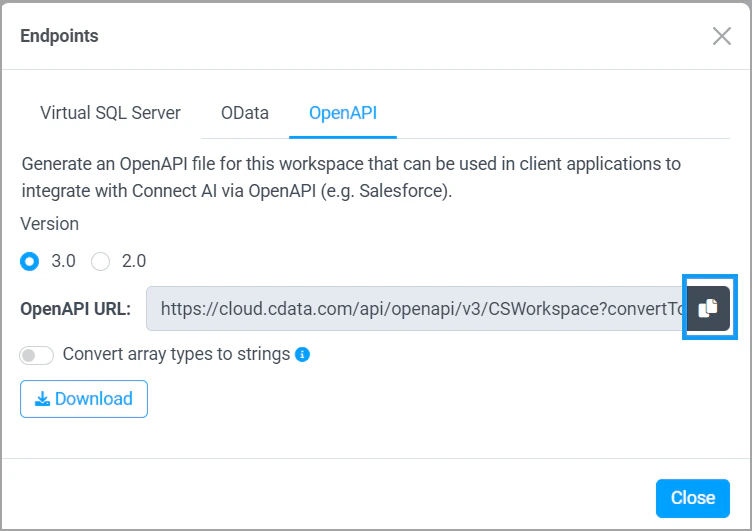
In **Workspaces** in Connect AI, select a workspace and copy the OpenAPI URL for the workspace. Keep the default options. See [OpenAPI](/en/API/OpenAPI) for more information.
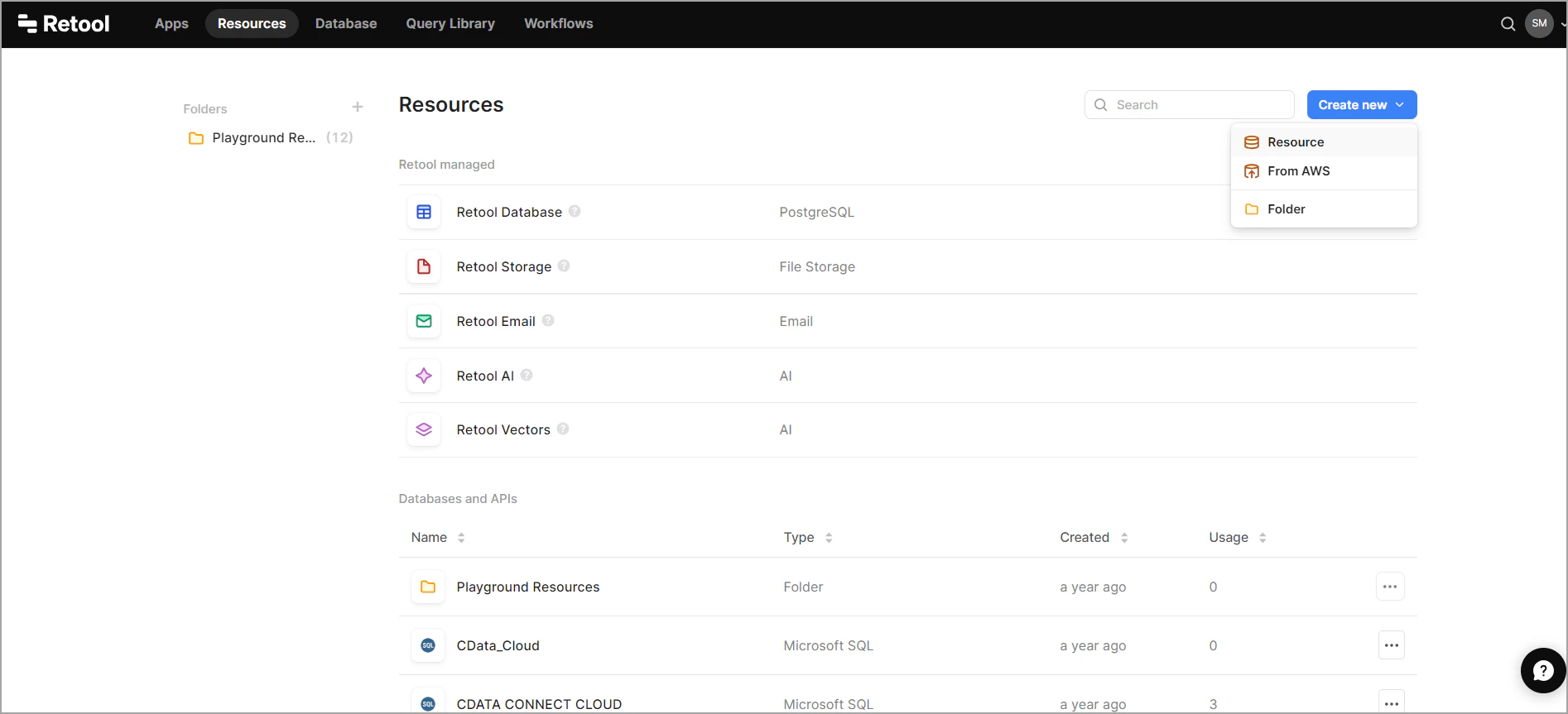
 Log in to Retool.
In the **Resources** tab, click **Create new** > **Resource**.
Log in to Retool.
In the **Resources** tab, click **Create new** > **Resource**.
 In the **Select a resource type** search bar, enter *OpenAPI*.
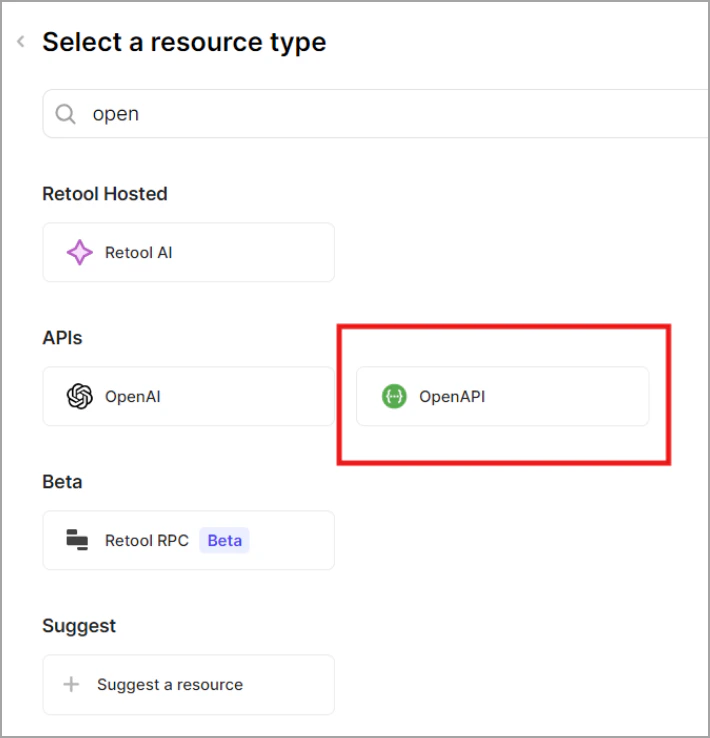 Click **OpenAPI**. The **Configure OpenAPI** screen appears.
Enter the following information to configure the OpenAPI connector:
* **Name**—the name to use to identify the connector.
* **Specification URL**—the OpenAPI URL you copied in Connect AI. Paste the URL here.
* **Forward headers when fetching OpenAPI spec**—must be selected.
* **Headers**—Authorization is *Basic*. Then, Retool requires that you Base64 encode your Connect AI username and PAT using the input format *username:PAT*. The PAT is the token you created in the prerequisites. You can use a tool such as the one [here](https://www.base64encode.org/). Click **Encode** and copy the Base64 encoded result into this field. For example, for *[test@cdata.com](mailto:test@cdata.com):12345*, the Base64 encoded value is *dGVzdEBjZGF0YS5jb206MTIzNDU=*.
* **Username**—enter your Connect AI username. This is displayed in the top-right corner of the Connect AI interface. For example, *[test@cdata.com](mailto:test@cdata.com)*.
* **Password**—enter the PAT you generated on the [Settings](/en/Settings#personal-access-tokens) page.
Click **OpenAPI**. The **Configure OpenAPI** screen appears.
Enter the following information to configure the OpenAPI connector:
* **Name**—the name to use to identify the connector.
* **Specification URL**—the OpenAPI URL you copied in Connect AI. Paste the URL here.
* **Forward headers when fetching OpenAPI spec**—must be selected.
* **Headers**—Authorization is *Basic*. Then, Retool requires that you Base64 encode your Connect AI username and PAT using the input format *username:PAT*. The PAT is the token you created in the prerequisites. You can use a tool such as the one [here](https://www.base64encode.org/). Click **Encode** and copy the Base64 encoded result into this field. For example, for *[test@cdata.com](mailto:test@cdata.com):12345*, the Base64 encoded value is *dGVzdEBjZGF0YS5jb206MTIzNDU=*.
* **Username**—enter your Connect AI username. This is displayed in the top-right corner of the Connect AI interface. For example, *[test@cdata.com](mailto:test@cdata.com)*.
* **Password**—enter the PAT you generated on the [Settings](/en/Settings#personal-access-tokens) page.
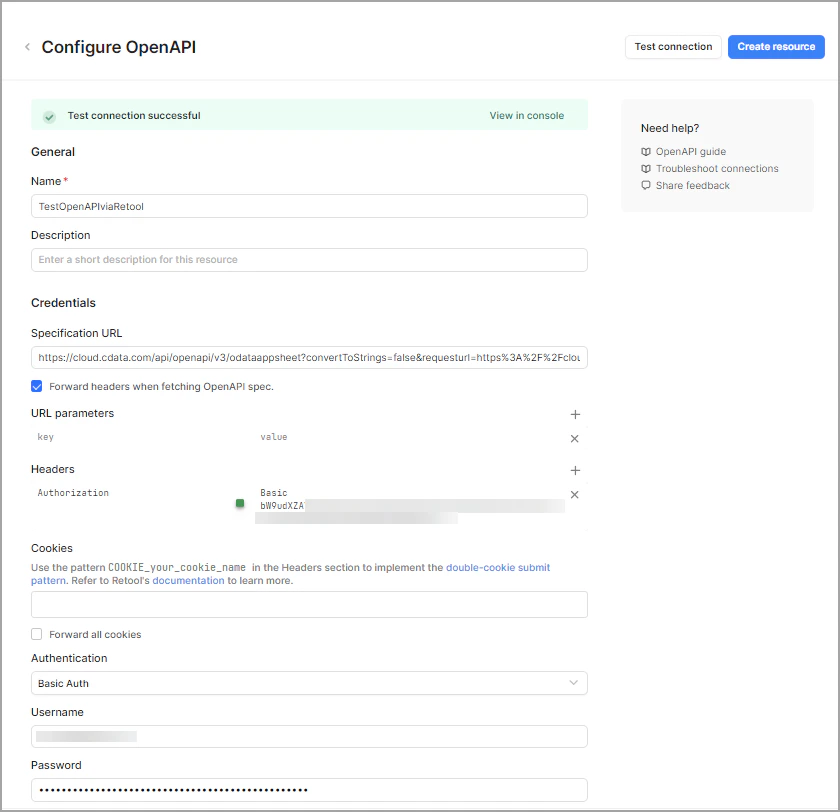 Click **Test connection** to test your connection configuration.
Once you have a successful connection, click **Create resource**.
Create the app in Retool in which to integrate your data.
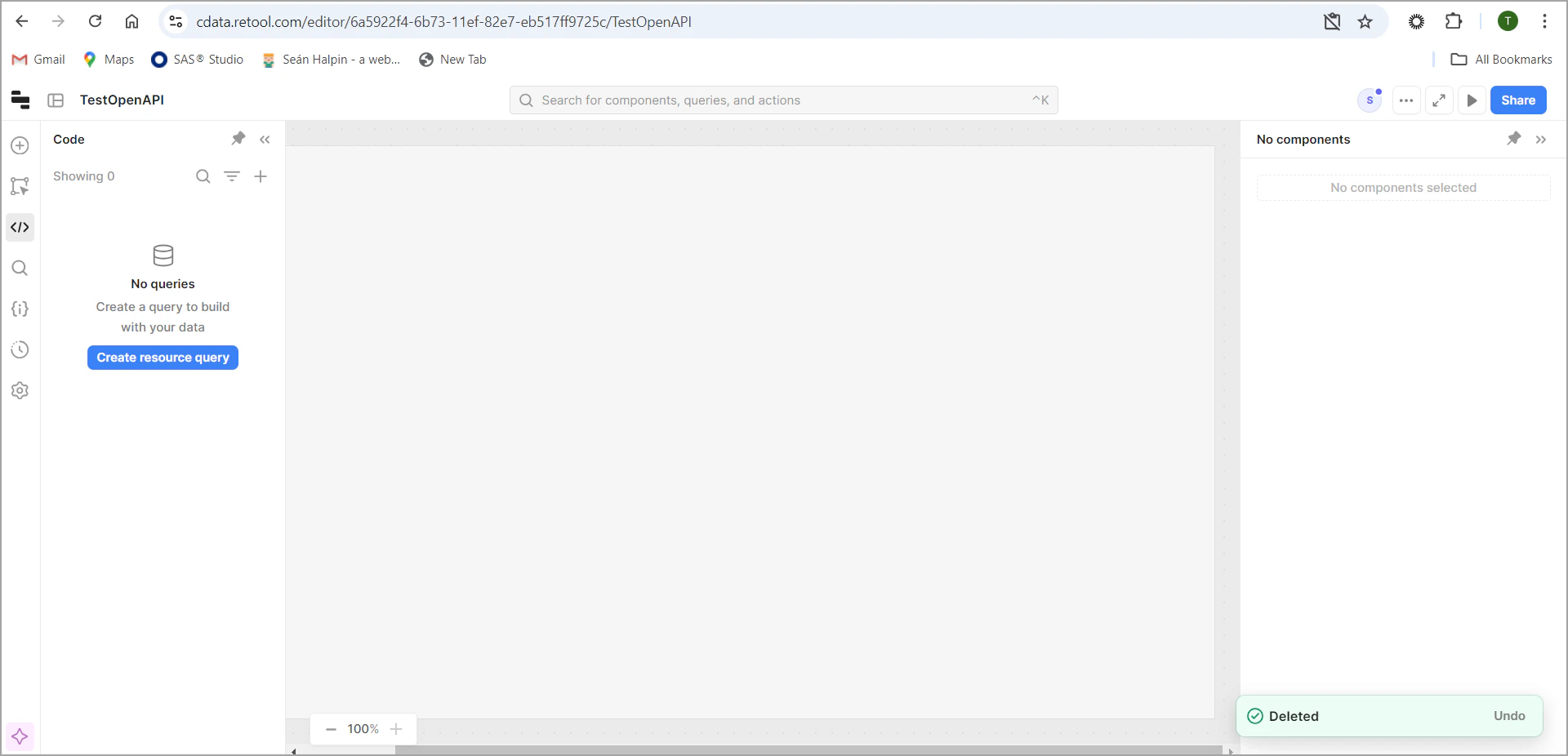
Click **Create resource query**.
Click **Test connection** to test your connection configuration.
Once you have a successful connection, click **Create resource**.
Create the app in Retool in which to integrate your data.
Click **Create resource query**.
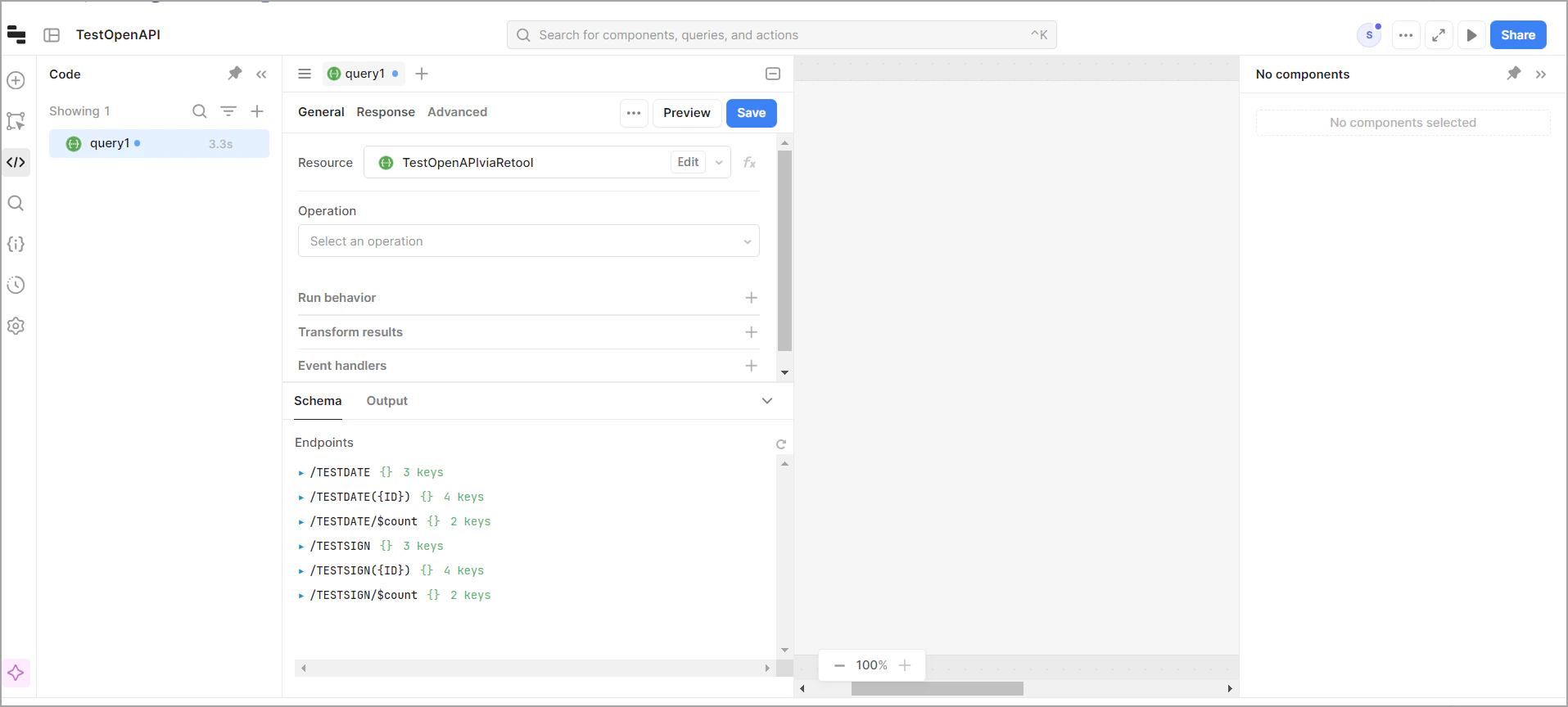
 Select the new resource you created, and view the endpoints that are available.
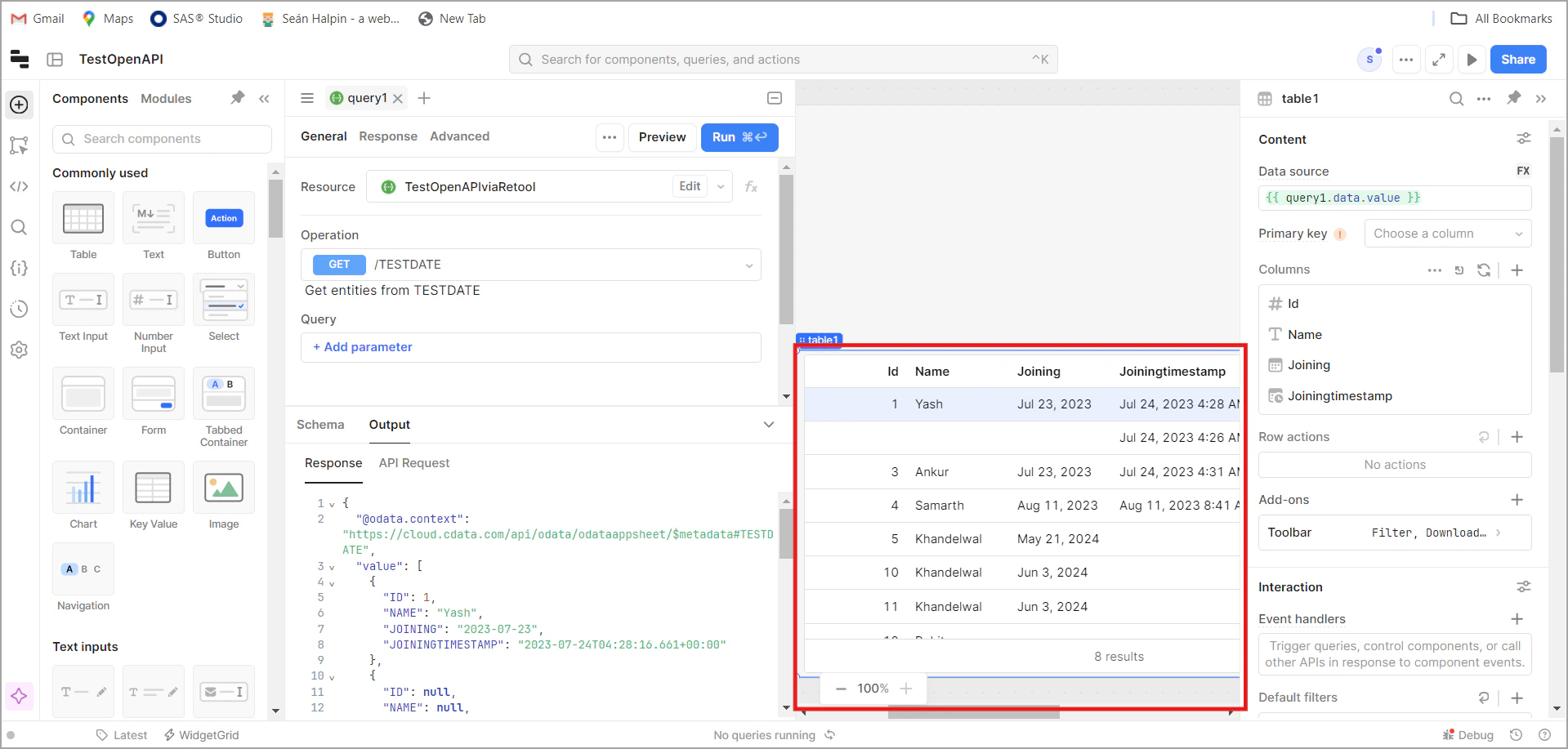
 You can now build your app with the data.
 ## Prerequisites for Connecting via Virtual SQL Server API
Before you connect, you must first do the following:
* Connect a data source to your Connect AI account. See [Sources](/en/Sources) for more information.
* Generate a Personal Access Token (PAT) on the [Settings](/en/Settings#personal-access-tokens) page. Copy this down, as it acts as your password during authentication.
## Connect to Connect AI via Virtual SQL Server API
To establish a connection from Retool to the Connect AI Virtual SQL Server API, follow these steps.
Log in to Retool.
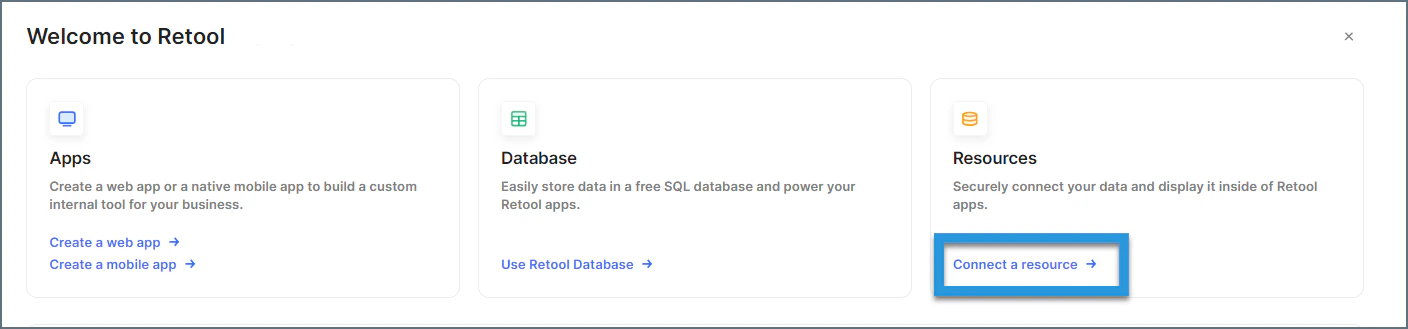
Under **Resources**, click **Connect a resource**.
## Prerequisites for Connecting via Virtual SQL Server API
Before you connect, you must first do the following:
* Connect a data source to your Connect AI account. See [Sources](/en/Sources) for more information.
* Generate a Personal Access Token (PAT) on the [Settings](/en/Settings#personal-access-tokens) page. Copy this down, as it acts as your password during authentication.
## Connect to Connect AI via Virtual SQL Server API
To establish a connection from Retool to the Connect AI Virtual SQL Server API, follow these steps.
Log in to Retool.
Under **Resources**, click **Connect a resource**.
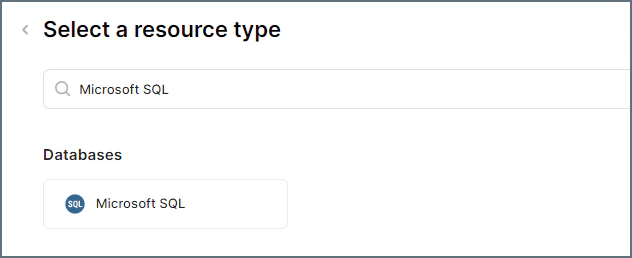
 Enter "Microsoft SQL" in the search bar and click the resulting option.
 Enter the connection settings.
* **Name**—a name for the connection to Connect AI
* **Host**—*tds.cdata.com*
* **Port**—*14333*
* **Database name**—enter the Connection Name of the Connect AI data source you want to connect to (for example, *Salesforce1*).
* **Database username**—enter your Connect AI username. This is displayed in the top-right corner of the Connect AI interface. For example, *[test@cdata.com](mailto:test@cdata.com)*.
* **Database password**—enter the PAT you generated on the [Settings](/en/Settings#personal-access-tokens) page.
Enter the connection settings.
* **Name**—a name for the connection to Connect AI
* **Host**—*tds.cdata.com*
* **Port**—*14333*
* **Database name**—enter the Connection Name of the Connect AI data source you want to connect to (for example, *Salesforce1*).
* **Database username**—enter your Connect AI username. This is displayed in the top-right corner of the Connect AI interface. For example, *[test@cdata.com](mailto:test@cdata.com)*.
* **Database password**—enter the PAT you generated on the [Settings](/en/Settings#personal-access-tokens) page.
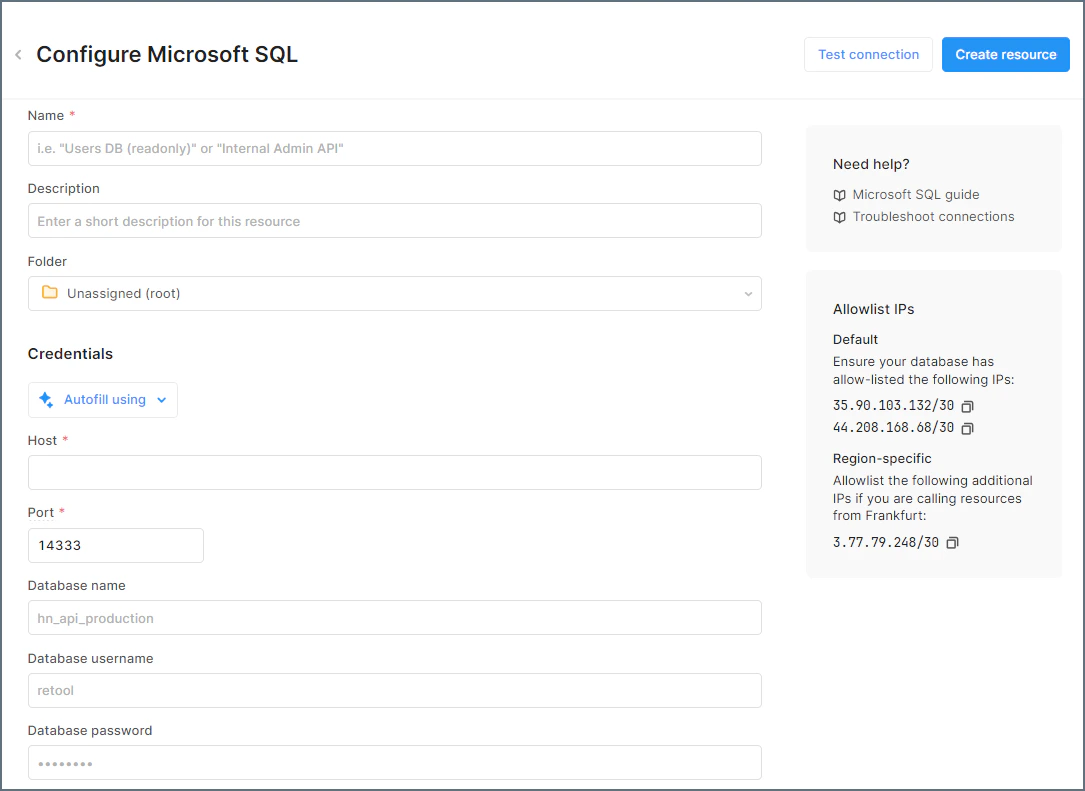 Click **Test connection**. If it succeeds, you can click **Create resource**. Your connection to Connect AI is ready to use.