> ## Documentation Index
> Fetch the complete documentation index at: https://docs.cloud.cdata.com/llms.txt
> Use this file to discover all available pages before exploring further.
# Power BI Desktop
> This page outlines the steps to connect Power BI Desktop to Connect AI.
## Prerequisites
Before you can configure and use Power BI Desktop with Connect AI, you must first connect a data source to your Connect AI account. See [Sources](/en/Sources) for more information.
## Step 1: Connect to Connect AI
In Power BI Desktop, click **Get Data** to open the Get Data window. In the drop-down list, click **More**.
Use the search field to find *Connect AI* and click **Connect**.
Click **Sign in** on the prompt that appears. Depending on your setup, this button may be labeled **Sign in as different user**.
In the Connect AI dialog, sign in to your Connect AI account.
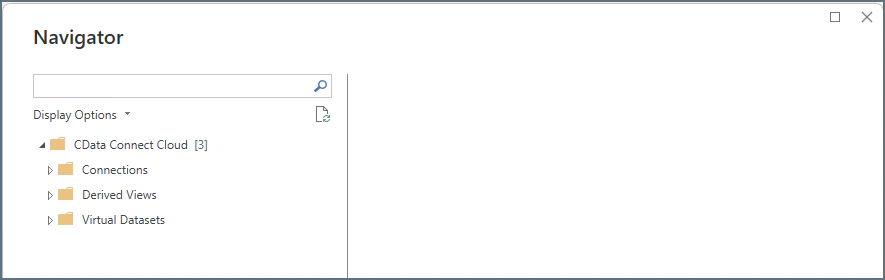
Return to Power BI Desktop and click **Connect** in the sign-in prompt. The **Navigator** dialog displays the three types of Connect AI connections: **Connections**, **Derived Views**, and **Workspaces**.
 ## Step 2: Import Data
After you connect to Connect AI, follow these steps to import data to Power BI Desktop:
In the **Navigator** dialog, expand the **Connections**, **Derived Views**, or **Workspaces** folder to locate the data to load.
The data is organized in the Navigator as follows:
* **Connections** > **Schemas** > **Table/View/Stored Procedure**
* **Derived Views** > **Derived View**
* **Workspaces** > **Assets** > **Table/View/Stored Procedure**
For example, to load a specific table within a connection, expand **Connections**, and then expand the connection name. Expand the appropriate schema and then select the table(s) to load, as shown below.
## Step 2: Import Data
After you connect to Connect AI, follow these steps to import data to Power BI Desktop:
In the **Navigator** dialog, expand the **Connections**, **Derived Views**, or **Workspaces** folder to locate the data to load.
The data is organized in the Navigator as follows:
* **Connections** > **Schemas** > **Table/View/Stored Procedure**
* **Derived Views** > **Derived View**
* **Workspaces** > **Assets** > **Table/View/Stored Procedure**
For example, to load a specific table within a connection, expand **Connections**, and then expand the connection name. Expand the appropriate schema and then select the table(s) to load, as shown below.
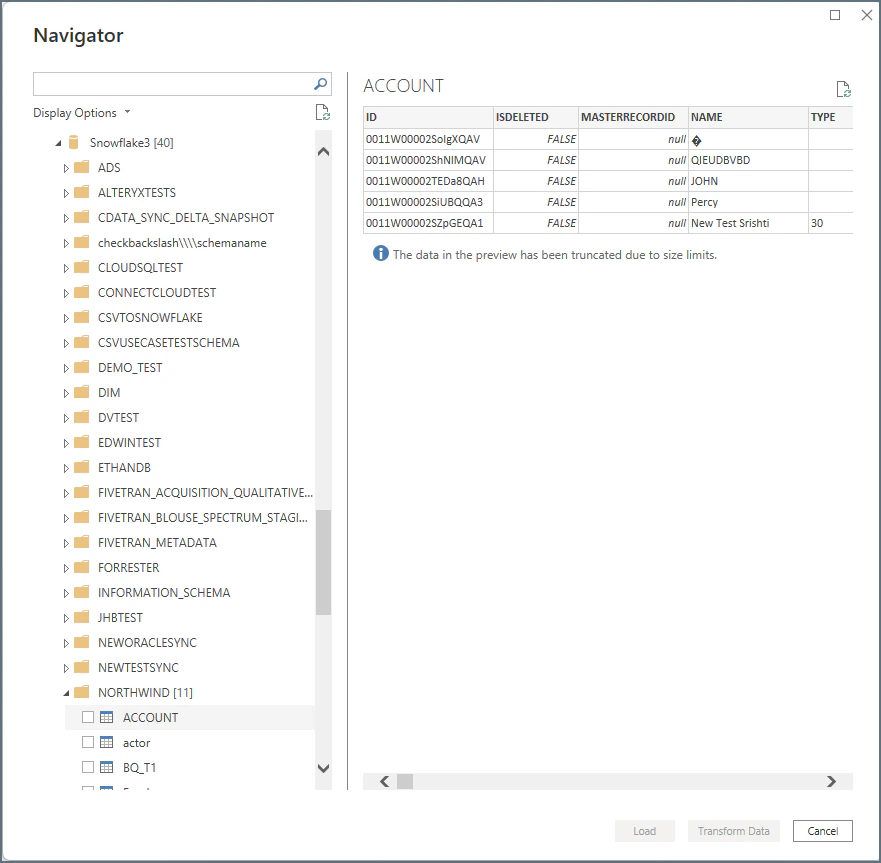 Check the boxes next to the any data that you want to work with. You can view a preview of the data if you wish.
Click **Load** or **Transform Data**.
* **Load** instructs the connector to execute the underlying query to Connect AI.
* **Transform Data** launches the Query Editor and displays a representative view of the table. To run a custom query through this interface, see [Running a Custom Query](#running-a-custom-query).
Create Power BI visuals with the data you loaded.
### Running a Custom Query
To run a custom query on your data, select **Transform Data** when you are importing from Connect AI and follow these steps:
In the Power Query Editor window, select **Advanced Editor** in the **Home** tab of the navigation ribbon.
Check the boxes next to the any data that you want to work with. You can view a preview of the data if you wish.
Click **Load** or **Transform Data**.
* **Load** instructs the connector to execute the underlying query to Connect AI.
* **Transform Data** launches the Query Editor and displays a representative view of the table. To run a custom query through this interface, see [Running a Custom Query](#running-a-custom-query).
Create Power BI visuals with the data you loaded.
### Running a Custom Query
To run a custom query on your data, select **Transform Data** when you are importing from Connect AI and follow these steps:
In the Power Query Editor window, select **Advanced Editor** in the **Home** tab of the navigation ribbon.
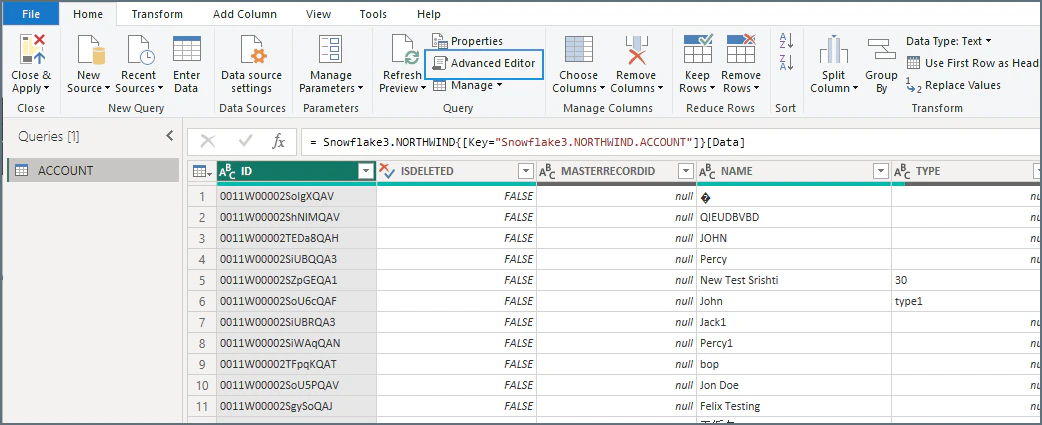 In the Advanced Editor, enter the text in the following format, replacing the contents of the query with your custom query.
```bash theme={null}
let
Source = CDataConnectCloud.Contents([Query="SELECT ACCOUNTNUMBER, BILLINGSTREET, BILLINGCITY, BILLINGSTATE FROM [Snowflake3].[NORTHWIND].[ACCOUNT] LIMIT 100"])
in
Source
```
Click **Done** to load your data into Power BI Desktop.
In the Advanced Editor, enter the text in the following format, replacing the contents of the query with your custom query.
```bash theme={null}
let
Source = CDataConnectCloud.Contents([Query="SELECT ACCOUNTNUMBER, BILLINGSTREET, BILLINGCITY, BILLINGSTATE FROM [Snowflake3].[NORTHWIND].[ACCOUNT] LIMIT 100"])
in
Source
```
Click **Done** to load your data into Power BI Desktop.