> ## Documentation Index
> Fetch the complete documentation index at: https://docs.cloud.cdata.com/llms.txt
> Use this file to discover all available pages before exploring further.
# GitHub Copilot
Connect AI uses OAuth authentication by default, but you can also use Basic authentication with a Personal Access Token (PAT).
## Prerequisites
Before you can configure and use GitHub Copilot with Connect AI, you must do the following:
* Connect a data source to your Connect AI account. See [Sources](/en/Sources) for more information.
* Install and enable GitHub Copilot in Visual Studio Code (or any IDE supporting GitHub Copilot).
* (Basic authentication only) Generate a Personal Access Token (PAT) on the [Settings](/en/Settings#personal-access-tokens) page. Copy this down, as it acts as your password during authentication.
* (Basic authentication only) Base64-encode your Connect AI credentials in the following format: `Base64("email:PAT")`.
## Connect to Connect AI
### OAuth Authentication
Create a folder named `.vscode` in your project repository. Within this folder, create a file named `mcp.json` and add the following configuration.
```json theme={null}
{
"servers": {
"cdata-mcp": {
"type": "http",
"url": "https://mcp.cloud.cdata.com/mcp"
}
},
"inputs": []
}
```
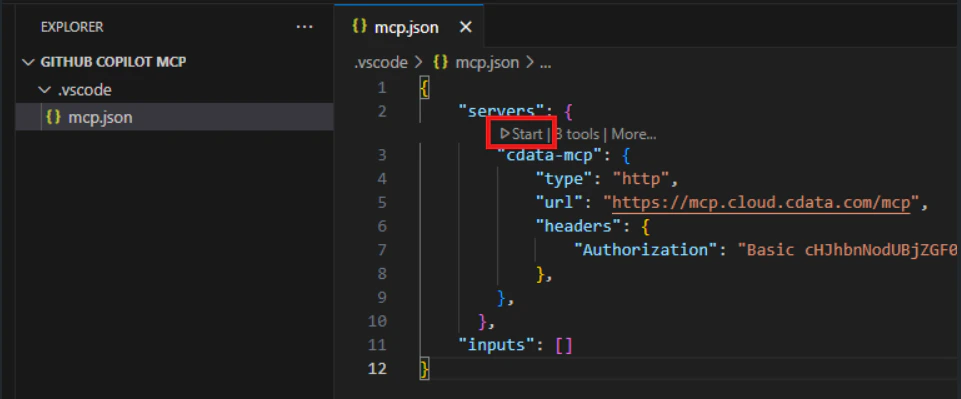
Click **Start** within your IDE to start the MCP server. Visual Studio Code opens your browser to the Connect AI sign-in page. Complete the sign-in to authorize the connection.
After authorization, the MCP server displays **Running**.
 ### Basic Authentication
Create a folder named `.vscode` in your project repository. Within this folder, create a file named `mcp.json` and add the following configuration. Replace `YOUR_BASE64_ENCODED_EMAIL:PAT` with the Base64-encoded value of `email:PAT` that you created in the prerequisites.
```json theme={null}
{
"servers": {
"cdata-mcp": {
"type": "http",
"url": "https://mcp.cloud.cdata.com/mcp",
"headers": {
"Authorization": "Basic YOUR_BASE64_ENCODED_EMAIL:PAT"
}
}
},
"inputs": []
}
```
Click **Start** within your IDE to start the MCP server. If the MCP server starts without error, it displays **Running**.
## Add the Connect AI Tools
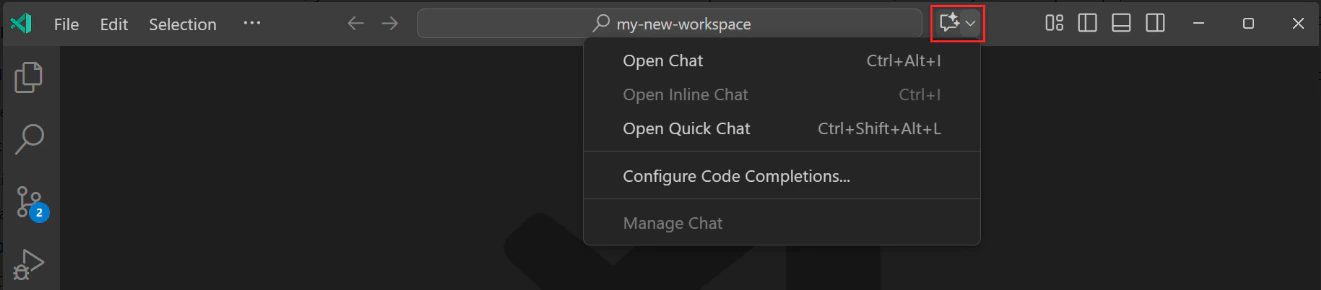
Toggle **Chat** in the title bar to display the **Chat** pane on the right.
### Basic Authentication
Create a folder named `.vscode` in your project repository. Within this folder, create a file named `mcp.json` and add the following configuration. Replace `YOUR_BASE64_ENCODED_EMAIL:PAT` with the Base64-encoded value of `email:PAT` that you created in the prerequisites.
```json theme={null}
{
"servers": {
"cdata-mcp": {
"type": "http",
"url": "https://mcp.cloud.cdata.com/mcp",
"headers": {
"Authorization": "Basic YOUR_BASE64_ENCODED_EMAIL:PAT"
}
}
},
"inputs": []
}
```
Click **Start** within your IDE to start the MCP server. If the MCP server starts without error, it displays **Running**.
## Add the Connect AI Tools
Toggle **Chat** in the title bar to display the **Chat** pane on the right.
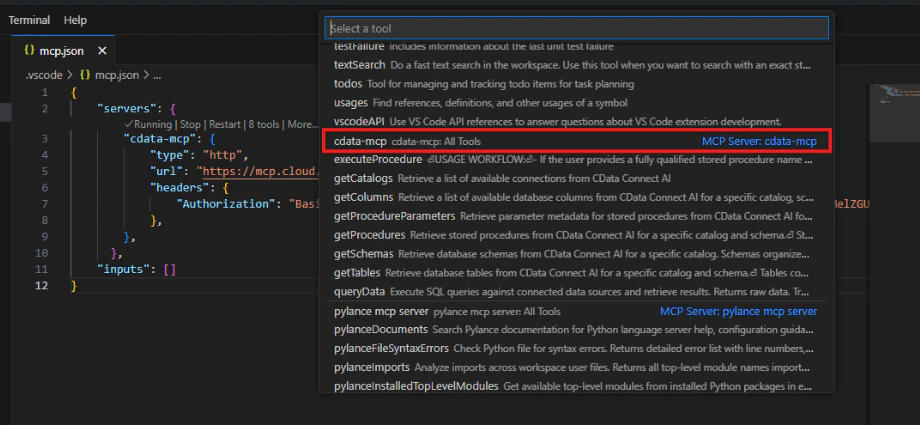
 Click **Add Context** in the bottom of the **Chat** pane. In the search bar, select **Tools**. Then search for *CData*. Add **cdata-mcp All Tools**.
 ## Chat with GitHub Copilot
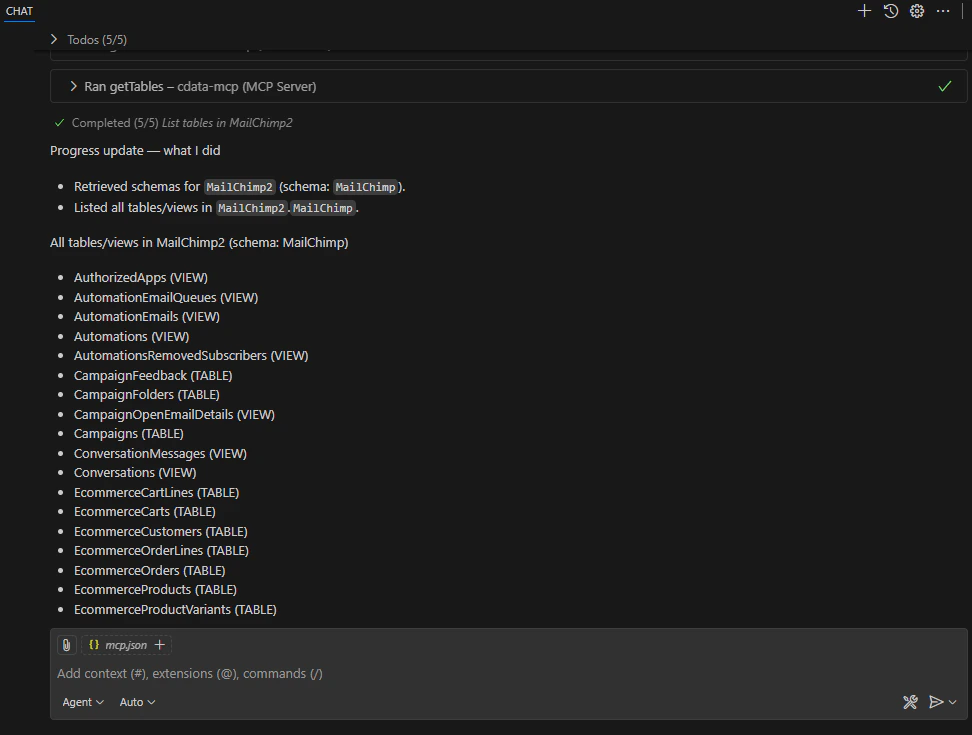
You can now chat with GitHub Copilot and issue contextual prompts. As a test, you can provide the MCP server with a prompt, such as a list of tables for a particular connection. GitHub Copilot uses the Connect AI tools such as `getCatalogs`, `getSchemas`, and `getTables` to retrieve data from the connected data source.
## Chat with GitHub Copilot
You can now chat with GitHub Copilot and issue contextual prompts. As a test, you can provide the MCP server with a prompt, such as a list of tables for a particular connection. GitHub Copilot uses the Connect AI tools such as `getCatalogs`, `getSchemas`, and `getTables` to retrieve data from the connected data source.