> ## Documentation Index
> Fetch the complete documentation index at: https://docs.cloud.cdata.com/llms.txt
> Use this file to discover all available pages before exploring further.
# ChatGPT
## Prerequisites
Before you can configure and use ChatGPT with Connect AI, you must first do the following:
* Connect a data source to your Connect AI account. See [Sources](/en/Sources) for more information.
* Have a [ChatGPT](https://chatgpt.com) Plus or Pro subscription.
## Connect to Connect AI
Follow these steps to add a Connect AI connector in ChatGPT:
Sign in to [ChatGPT](https://chatgpt.com) with a Plus or Pro subscription.
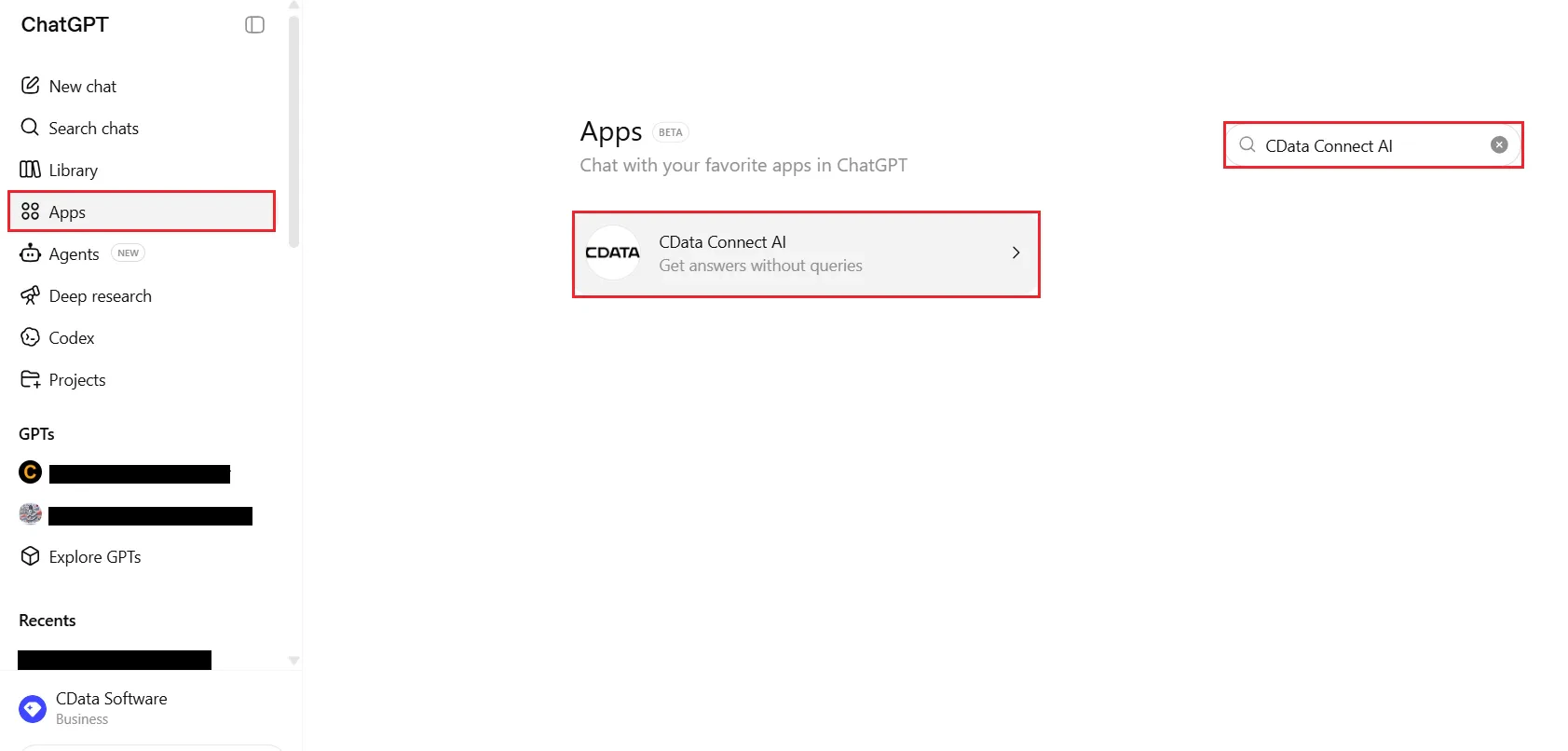
Navigate to **Apps** from the left panel.
Search for *CData Connect AI* and select it from the results.
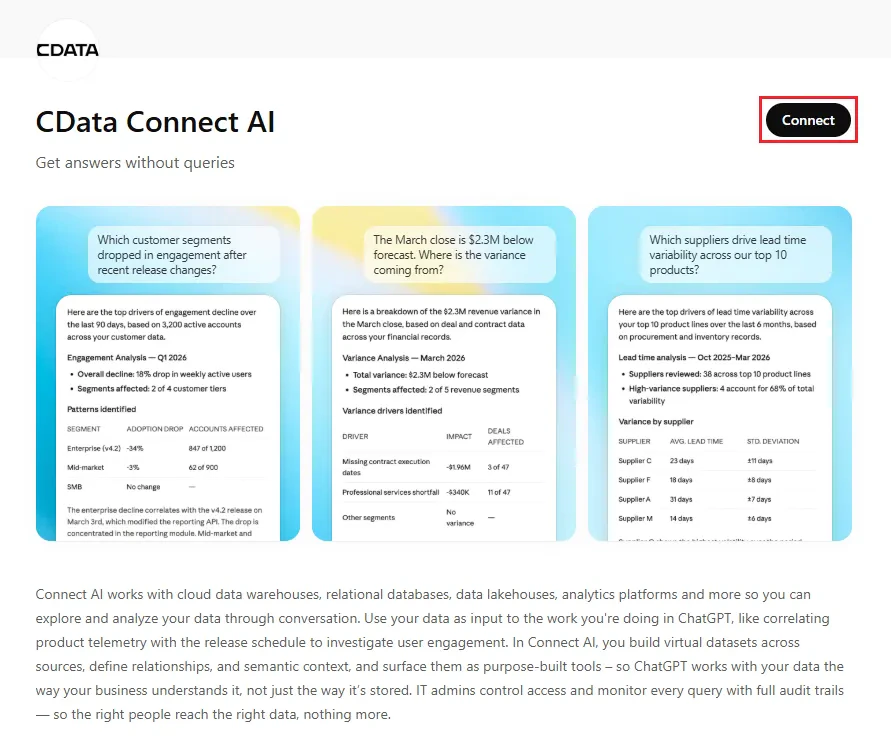
 Click **Connect** to authenticate to your Connect AI account.
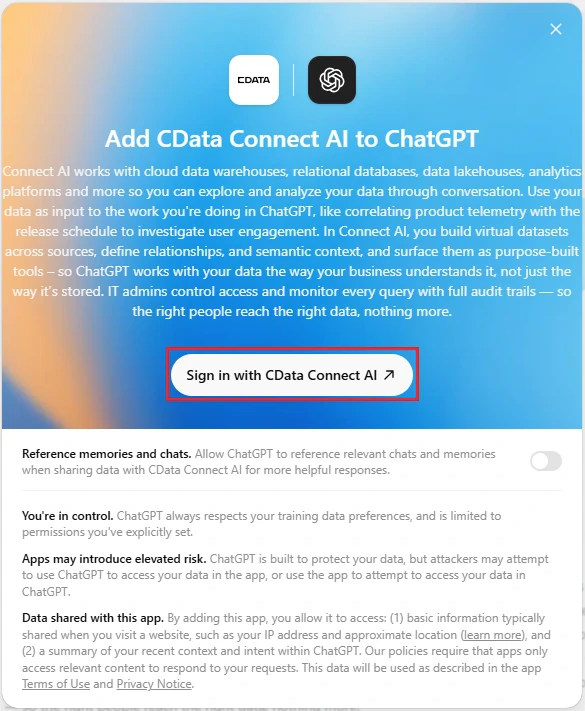
 Click **Sign in with CData Connect AI** and complete the sign-in.
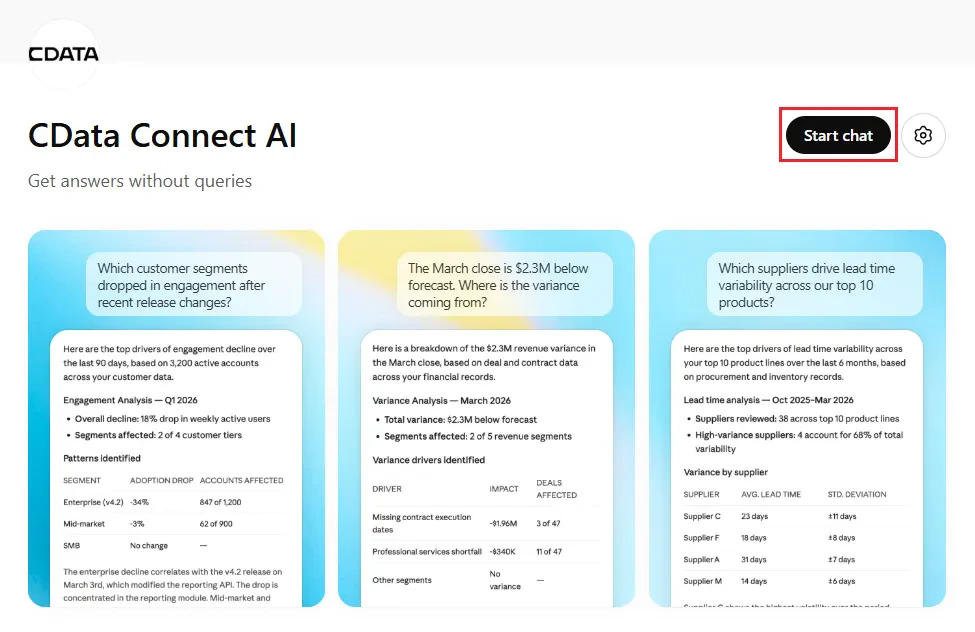
 After successful authorization, click **Start chat**.
 CData Connect AI should be automatically enabled in the chat. If not, click **+**, select **More**, and then select **CData Connect AI** from the drop-down list.
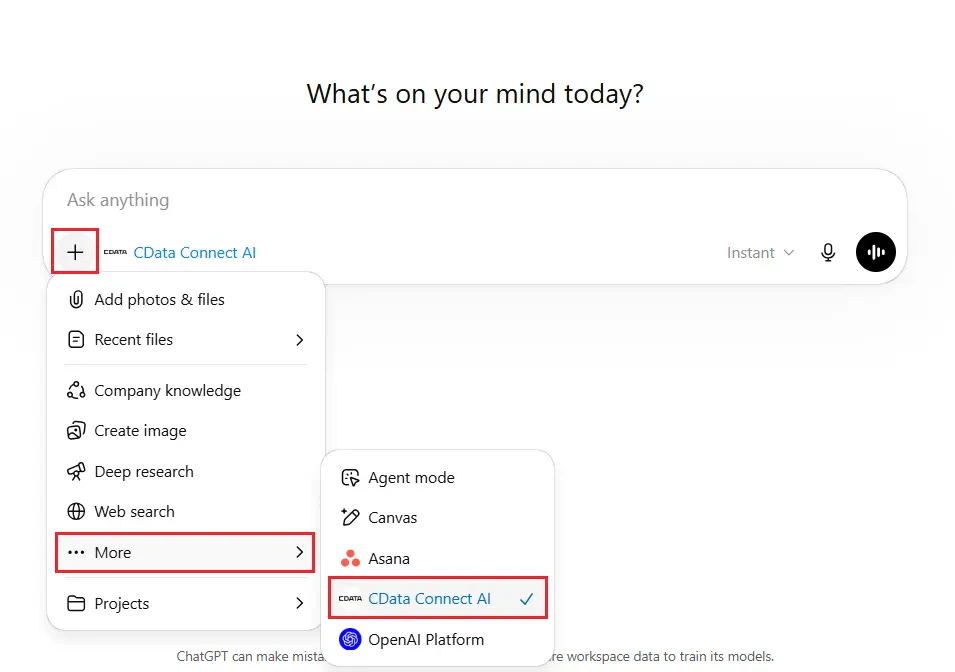 You can now start exploring your data with natural language prompts. ChatGPT uses the Connect AI MCP server to query your live data and may ask your permission before accessing it.
Refer to CData's [prompt library](https://www.cdata.com/ai/prompt-library/) for prompt ideas.
ChatGPT's Apps feature is currently in beta and its setup process is subject to change. Refer to [ChatGPT's documentation](https://help.openai.com/en/articles/11487775-apps-in-chatgpt) for the latest setup information.
You can now start exploring your data with natural language prompts. ChatGPT uses the Connect AI MCP server to query your live data and may ask your permission before accessing it.
Refer to CData's [prompt library](https://www.cdata.com/ai/prompt-library/) for prompt ideas.
ChatGPT's Apps feature is currently in beta and its setup process is subject to change. Refer to [ChatGPT's documentation](https://help.openai.com/en/articles/11487775-apps-in-chatgpt) for the latest setup information.